 Donezo Inbox
Home / Features
AI email drafts that sound like you
Donezo Inbox drafts email in four ways: Write with AI (⌘J) in the composer, up to three one-tap suggested replies under threads waiting on you, grey inline autocomplete as you type, and pre-written drafts from the background assistant. They learn your tone from your recent sent mail, can draw on notes you write, and you review every draft before it goes.
What are the ways Donezo drafts email?
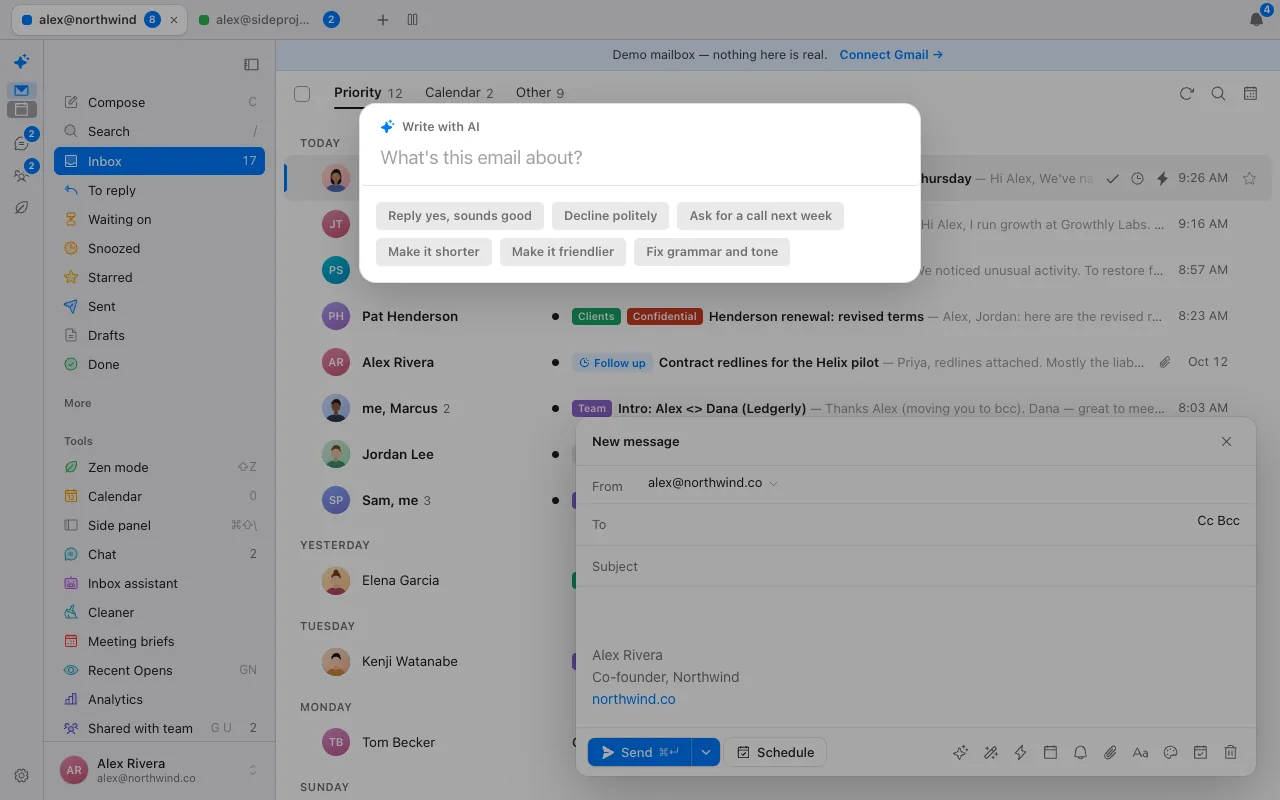
- Write with AI (⌘J). Ask for a draft in the composer with a prompt of your own, or one of the quick ones: reply yes, decline politely, ask for a call next week, make it shorter, make it friendlier, fix grammar and tone.
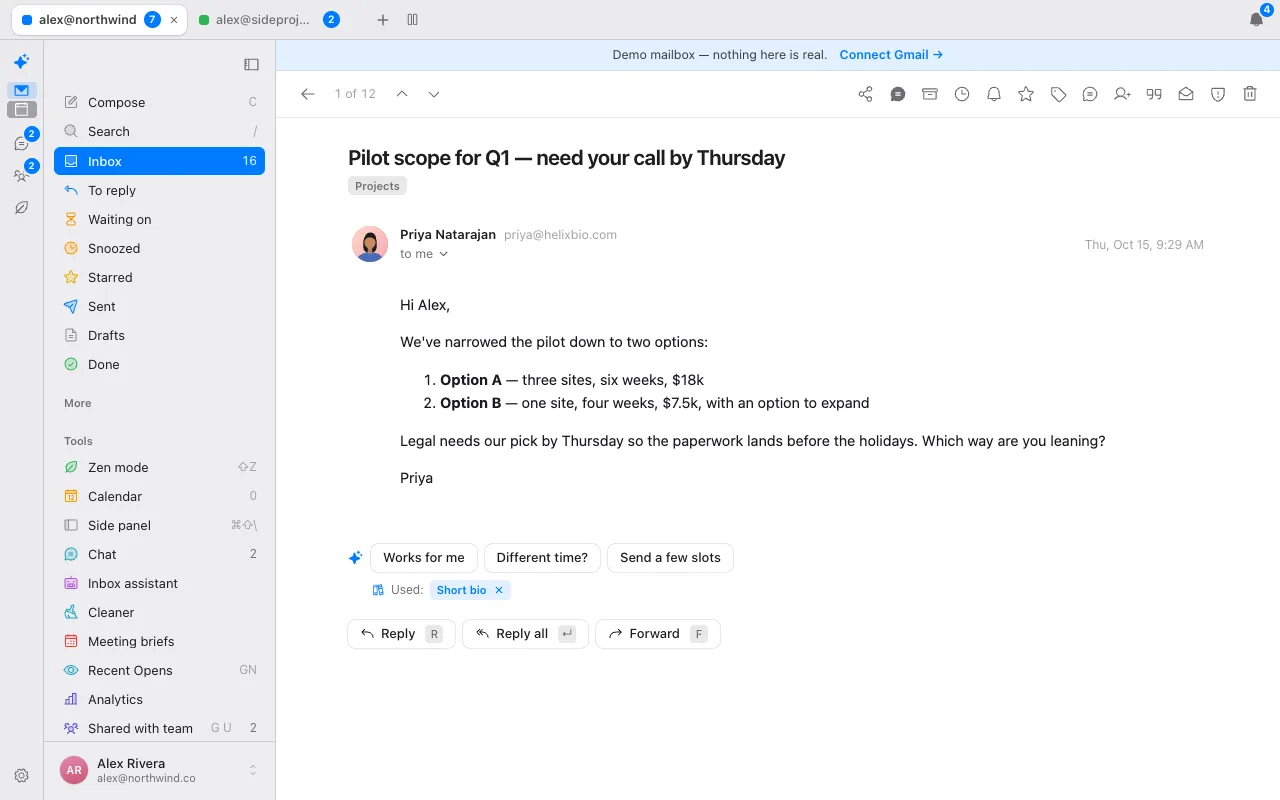
- Suggested replies. Up to three one-tap replies under conversations that are waiting on you. One tap opens the composer filled in. Skipped for newsletters and automated mail.
- Inline autocomplete. A grey suggestion of up to 20 words after a short pause once you have typed a sentence. Tab accepts it, the right arrow takes one word and Esc dismisses it. It never sends or saves anything.
- Assistant drafts. The background assistant leaves a pre-written reply in the thread. Drafts only; it never sends.
- Fix grammar and tone. Rewrites the selection or the whole draft and shows a word-by-word diff so you see exactly what changed.
How does it learn your tone, and what can it draw on?
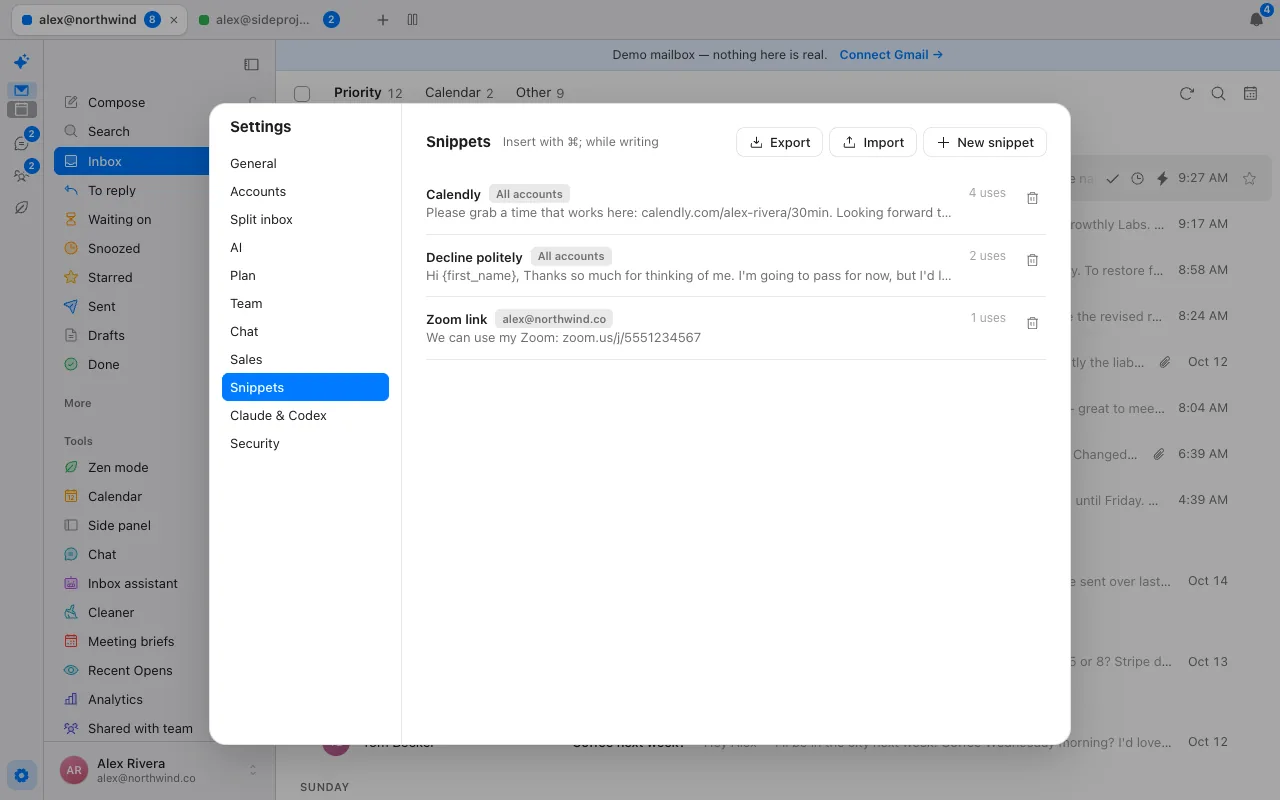
Tone comes from your recent sent mail, plus optional style notes you write yourself. For facts, a Knowledge Base lets you keep notes the AI can draw on: pricing, policies, bios, FAQs and boilerplate, added by hand or imported from pasted text or a text, Markdown, CSV or JSON file, and exported as JSON. For each draft, up to four matching notes are put into the prompt, and the note that was used is shown.
Which AI writes the drafts, and where does your text go?
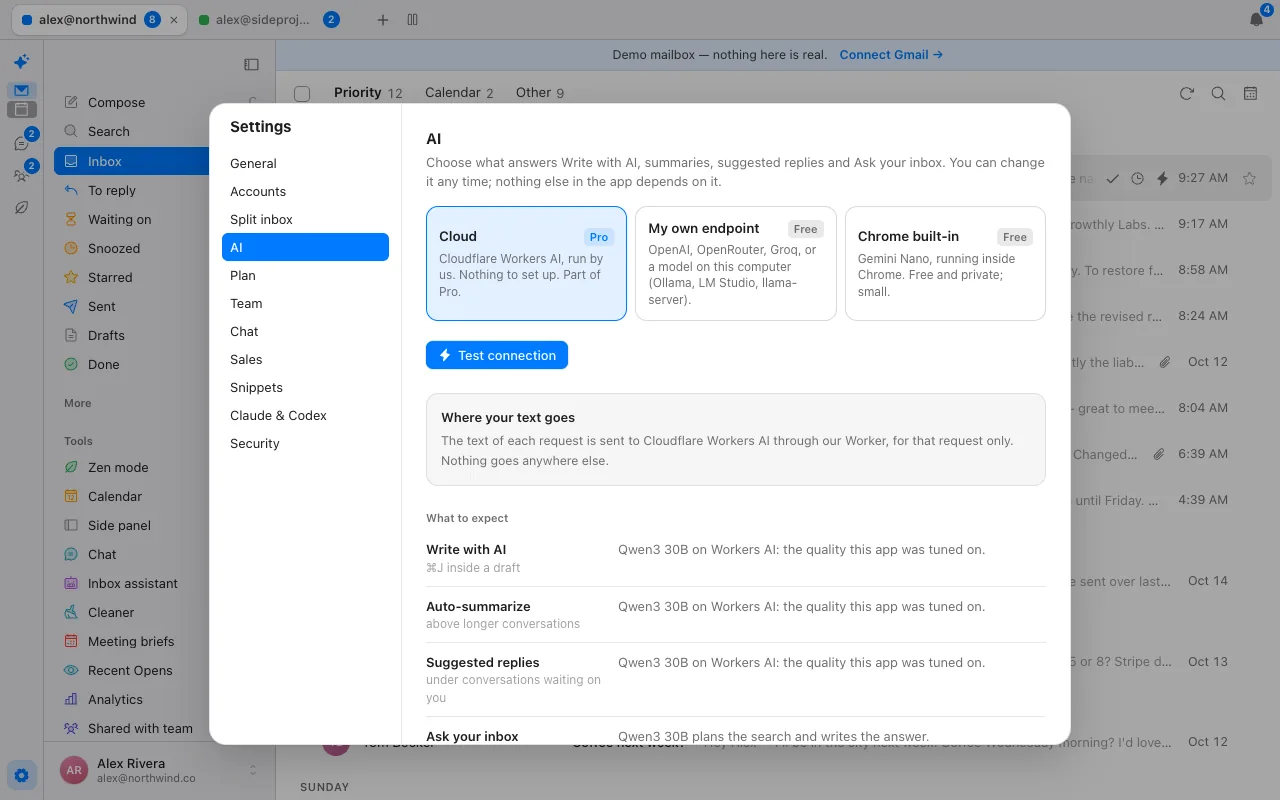
Your choice. Your own key (OpenAI, OpenRouter, Groq or any compatible endpoint), a model on your computer (Ollama, LM Studio, llama-server) or Chrome's built-in model are free, and the text goes straight from your browser to the one you picked. Our hosted Workers AI is part of Pro ($29/year); with it, the text of each request goes to Cloudflare Workers AI through our server, for that request only. The always-on background assistant runs on our servers, so it needs Pro or a server-side key of your own.
What stays in your hands?
You review and send every draft. Nothing is sent automatically, autocomplete never saves anything, and suggested replies, summaries and the assistant can each be switched off. See the assistant for its rules and activity log.
Which keys does the composer use?
| Action | Key | Action | Key |
|---|---|---|---|
| Write with AI | ⌘J | Send | ⌘↵ |
| Use a snippet | ⌘; (or ;name then Tab) | Send and mark done | ⌘⇧↵ |
| Send later | ⌘⇧L | Instant send (no undo window) | ⌘⇧Z |
| Remind me | ⌘⇧H | Remind me if no reply | ⌘⇧U |
| Accept autocomplete | Tab | Take one word of it / dismiss | → / Esc |
| Edit To, Cc, Bcc, From | ⌘⇧O, ⌘⇧C, ⌘⇧B, ⌘⇧F | Attach | ⌘⇧A |
| Pop a draft out or in | ⌘⇧P | Discard the draft | ⌘⇧, |
Send later takes plain words and a place: a wall-clock time like “3 PM San Francisco time” is read in that time zone, and scheduled sends run on the server, so they go out with the app closed. Undo stays available for the window you set in Settings (10 seconds by default).
How do you get better drafts?
- Say what the email is for, not how it should sound. Your tone comes from your sent mail; the prompt should carry the intent (“decline politely, offer next quarter”).
- Put facts in the Knowledge Base. Prices, policies, links and bios you would otherwise retype are the things a draft gets wrong when it has to guess.
- Use the diff. Fix grammar and tone shows what changed word by word, so you accept the edit or discard it.
- Keep style notes short. A few lines about how you write beat a long essay.
How do you schedule an email to send at a specific time?
- Write the message in the composer.
- Click Schedule next to Send, or press ⌘⇧L.
- Pick Today, Tomorrow, a day or a date, or type a time in words such as “fri 9am”. A place works too: “3 PM San Francisco time” is read in that zone.
- Confirm. The message waits on our server and sends at that time, so your laptop can be shut.
- Change or cancel it from the Scheduled view (G then Q).
Questions
Does it send the email for me?
No. You review and send every draft.
Is AI drafting free?
With your own key, a local model or Chrome's built-in model, yes. Hosted AI is part of Pro.
How does it learn my tone?
From your recent sent mail, plus any style notes you write. You can also keep a Knowledge Base of facts for it to draw on.
Can it use my own facts, like pricing or bios?
Yes. Add notes to the Knowledge Base; up to four matching notes are used per draft.
Does the text of my email go to a third party?
With hosted AI, to Cloudflare Workers AI through our server. With your own key or a local model, to the endpoint you chose. Nothing goes to an advertising network.
How do I schedule an email to send at a specific time?
Press ⌘⇧L in a draft or click Schedule next to Send, then type a time such as fri 9am or 3 PM San Francisco time. It sends from our server, so the app can be closed.
Can I set a reminder if nobody replies?
Yes. Use the caret next to Send or ⌘⇧U to pick 1 day, 2, 3, a week or a custom number. The thread returns to the top of your inbox only if nobody but you has written.
Are there email templates?
Snippets are reusable replies with merge fields, inserted with ⌘; or by typing ;name and Tab.
See it for yourself
The live demo runs with sample mail, no sign-in.
Try the live demoContinue with Google