 Donezo Inbox
How to schedule an email in Gmail
In Gmail on the web, write the message, click the arrow next to Send, choose Schedule send and pick a time. To change it, open Scheduled in the left panel, select the email and click Cancel send. Donezo Inbox does the same from a Schedule button or ⌘⇧L, and takes times typed in words such as “friday 9am london”.
How do you schedule an email in Gmail?
- Open Gmail on your computer and click Compose at the top left.
- Write your email.
- Click the down arrow next to Send at the bottom left, then click Schedule send.
- Pick one of the suggested times, or choose a date and time of your own.
- Change it: open Scheduled in the left panel, select the email, click Cancel send at the top right, make your edits, then use the arrow next to Send and Schedule send again with the new time.
- Cancel it: open Scheduled, select the email and click Cancel send. A canceled email becomes a draft.
- Limits: Gmail allows up to 100 scheduled emails. It sends at the time zone you choose when scheduling, and a scheduled email may go out a few minutes after the set time.
These steps follow Google's own documentation, read on October 19, 2026 for Gmail on the web (desktop). They were checked against the documentation, not clicked through in a real account. Google's page does not say how far ahead you can schedule. Menus change now and then; if a label differs, Google's page is the reference.
How do you schedule an email in Donezo Inbox?
Donezo Inbox is an email client for Gmail and Google Workspace. A scheduled message is stored on Donezo's server and sent from there at the time you chose, so your laptop can be closed when it goes out.
- Write a message (press C for a new one, R to reply).
- Click Schedule next to Send, or press ⌘⇧L inside the draft.
- Type a time in words, such as “tomorrow 3pm”, “friday 9am london” or “3pm PT”, or choose a preset: In 1 hour, Tomorrow morning, Tomorrow afternoon, This weekend, Next week, In 2 weeks, In a month, or Pick date & time.
- Check the line under the box. It shows the time in the zone you chose and in your own, and warns when daylight saving shifts the time. Press Enter, or click the preset, to schedule it.
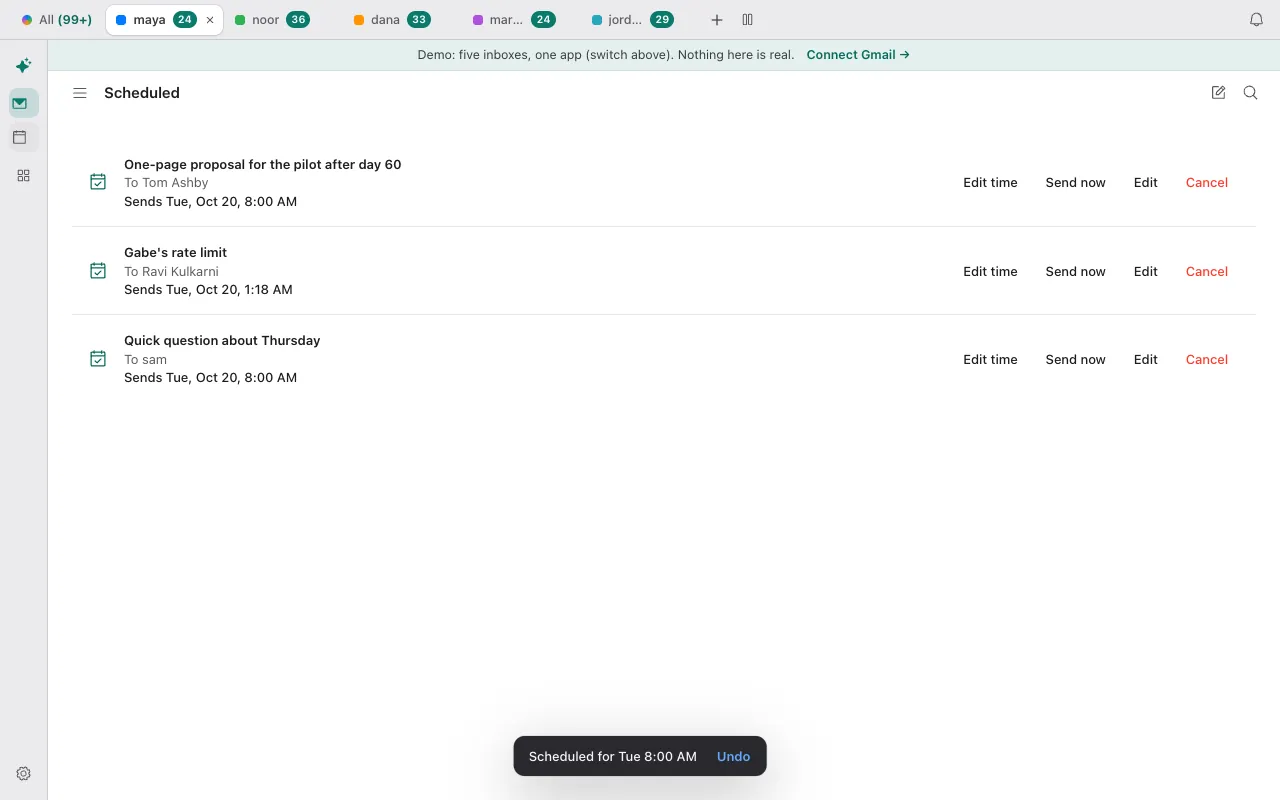
- Open Scheduled in the sidebar to see what is waiting. Each row has Edit time, Send now, Edit and Cancel.
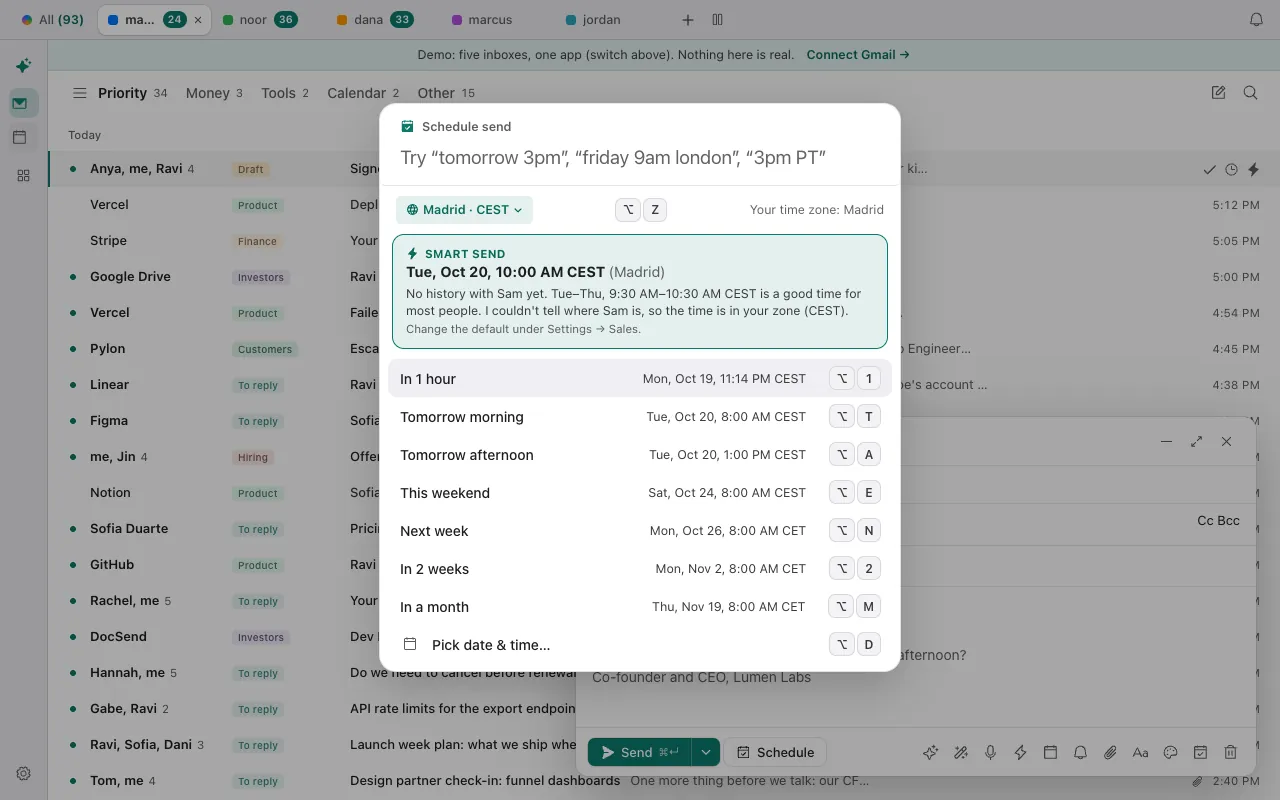
- The picker starts in your default zone (Settings, then General) and remembers the last zone you used on this device. Switch zones with the chip, or type one in the box.
- The toast after scheduling has an Undo button for about ten seconds, which puts the draft back.
You can try the picker without signing in. Open the live demo: it runs with sample mail, no sign-in.
Can Claude or Codex schedule an email for you?
Yes, through the Donezo Inbox connector. Its send_email tool takes a sendAt time and an optional time zone. Ask for the draft first, so you see the words and the exact time before anything is queued.
Safe first step: a draft you can read
Find the latest thread from Priya and write a short reply that proposes Thursday at 2pm. Save it as a draft only. Do not send or schedule it. Tell me the thread you used.Then ask for the schedule, with the time written out
Schedule the same reply text in that thread for 9:00 AM next Tuesday, San Francisco time (America/Los_Angeles). Before you do, tell me the exact date, time and zone you will use.With the default link setting, Read and write, with approval, a scheduled send waits in your approval queue (Settings, then Developer, then Approvals) and does nothing until you approve it. Requests expire after 24 hours. The connector schedules a message, not an existing draft, so the draft from the first step stays in Drafts; delete it once the send is approved. If you turn off Let agents send email, the agent can only create drafts.
Tools involved: create_draft, send_email. The full list, permissions and setup commands are in the connector documentation.
What if the email did not go out on time?
- Gmail sent it a few minutes late. Google says a scheduled email may be sent a few minutes after the set time.
- The time is wrong for the other person. Gmail sends at the time zone you selected. In Donezo Inbox the preview line shows the time in the zone you chose and in yours before you confirm; check it, and type the zone (“9am london”) when you mean theirs.
- You cannot find the scheduled email. In Gmail it is in Scheduled in the left panel. A canceled one is back in Drafts. In Donezo Inbox it is in the Scheduled view (press G, then Q).
- You hit the limit. Gmail allows 100 scheduled emails at once. Send or cancel some, then schedule again.
Questions
Can you schedule an email in Gmail without an app?
Yes. Schedule send is built into Gmail on the web; no extension is needed. The steps above come from Google's own help page.
Does the computer have to stay on?
In Gmail, no: Google sends it. In Donezo Inbox, no either: a scheduled message is held on Donezo's server and sent from there. The exception is Donezo's undo window right after you press Send on an unscheduled message, which runs in the open app.
What happens to a scheduled email if I cancel it?
In Gmail it turns into a draft. In Donezo Inbox, Cancel on the Scheduled row cancels the send, and Edit opens it again so you can change it.
Can I schedule a reply as well as a new email?
In Donezo Inbox, yes: the scheduled reply stays in its thread. Google's page describes scheduling from Compose.