 Donezo Inbox
How to clean up your Gmail inbox
Clean up in this order: unsubscribe from what keeps arriving, clear promotions and old mail, archive what you want to keep, then set up a filter or inbox tabs so the pile does not return. In Gmail that is More, then Manage subscriptions; then Select, select all conversations and Delete; then Archive; then Create filter. Donezo Inbox's Cleaner covers the first two stages in one place, and Get me to zero moves old mail to Done with an undo for 24 hours.
How do you clean up your Gmail inbox, step by step?
- 1. Unsubscribe first, so the pile stops growing. In the left sidebar click More, then Manage subscriptions, and click Unsubscribe next to each sender you no longer want. Google says this page is still being released gradually, so it may not be in your account yet. Every step, and the one-email route, are in how to unsubscribe from emails in Gmail in bulk.
- 2. Clear promotions and old mail. On the left, select a category such as Promotions or All mail. Tick the Select box at the top left, click the link in the notification that offers to select all conversations, then click Delete. To clear by age instead, search first, for example
older_than:1y. Read the first page of results before you delete. The steps are in how to mass delete emails and, for age, how to delete old emails. - 3. Archive what you want to keep. Tick the box next to a message and click Archive at the top, or press E with keyboard shortcuts on. Archived mail is under More, then All Mail, and
in:archivefinds it. For mail you need later, point to it, click Snooze on the right and choose a later day and time; snoozed mail is under Mail, then Snoozed. See how to find archived emails and Gmail keyboard shortcuts. - 4a. Stop a sender or topic coming back with a filter. Click the Show search options icon in the search box and enter your criteria. Click Search to preview what matches, click Create filter, choose what the filter should do, and click Create filter again. Google says a filter can send mail to a label, archive it, delete it, star it or forward it.
- 4b. Or sort the inbox into tabs. Click Settings at the top right, and under Inbox type choose Default. Click Customize, select the categories you want (Primary, Social, Promotions, Updates, Forums) and click Save. To move one email to another tab, drag it there; Undo appears at the bottom left.
- Why this order: unsubscribing first means the clean-up does not have to be repeated next week, and deleting before archiving means you only sort what is worth keeping.
- Delete or archive: deleted mail waits in Trash for up to 30 days and is then permanently deleted. Archived mail stays in your account.
- Filters: a filter that forwards affects only new messages, and a reply to a filtered message is filtered only if it meets the same search criteria. To change or remove one, click Settings, then See all settings, then Filters and Blocked Addresses.
- Tabs: you can only choose from Google's categories, not make your own, and the Default inbox type is not available if your inbox holds more than 250,000 emails; Google says to delete or archive until you are under that. New-mail notifications cover only Primary, and archived mail does not appear in a tab. For one sender, Google suggests a filter rather than dragging.
- After unsubscribing: Google says a sender can take a few days to process the request, and that new mail from them goes to Spam.
These steps follow Google's own documentation, read on October 20, 2026 for Gmail on the web (desktop). They were checked against the documentation, not clicked through in a real account. Each stage follows its own Google page, all read the same day: Delete messages (support.google.com/mail/answer/7401), Archive Gmail messages (6576), Snooze emails until later (7622010), Create rules to filter your emails (6579) and Organize your emails into categories (3094499). Google's archive page describes one message at a time and says nothing about archiving many at once, and its filter page does not list the filter's options by label. Menus change now and then; if a label differs, Google's page is the reference.
How do you clean up your inbox in Donezo Inbox?
Donezo Inbox is an email client for Gmail and Google Workspace. Its Cleaner does stages one and two, Done holds stage three, and rules plus the inbox assistant cover stage four. This page is the order; each stage links to the guide with the full steps.
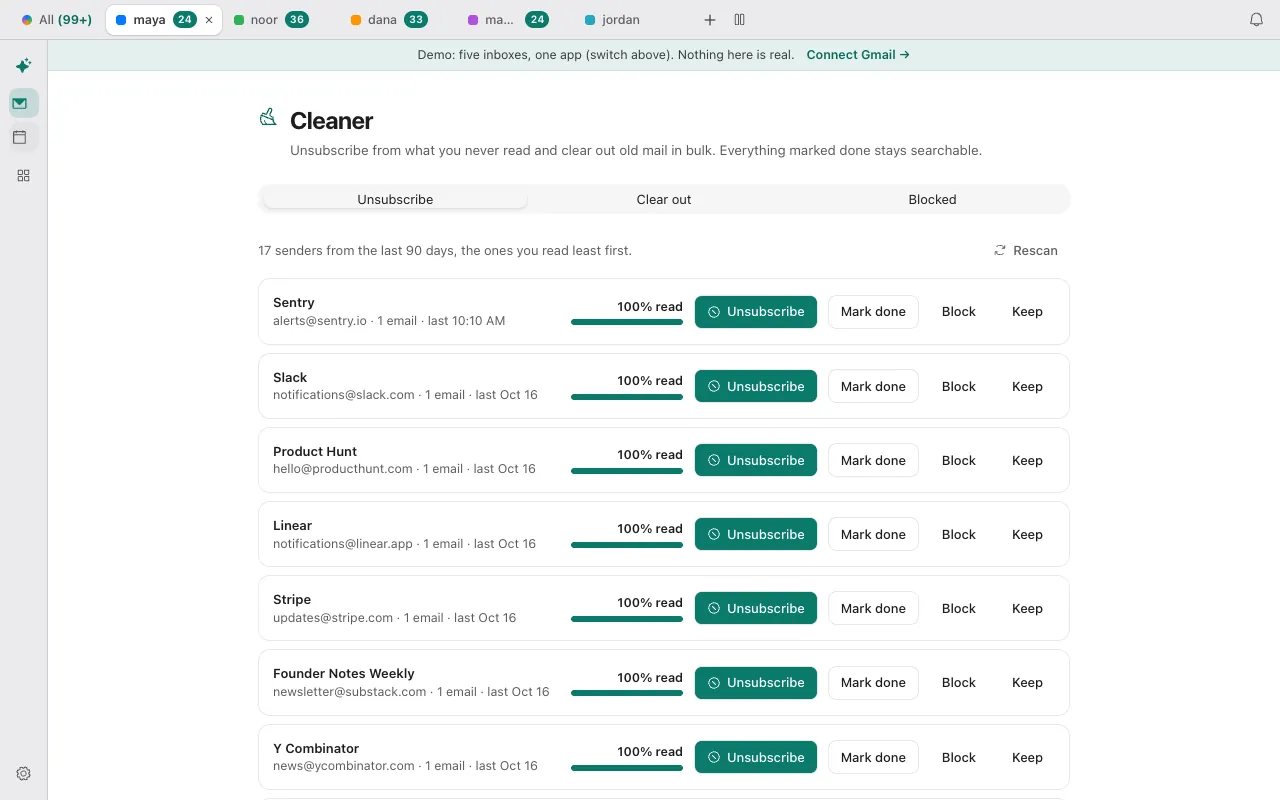
- 1. Unsubscribe. Open the Cleaner (the broom in the Tools dock, or ⌘K and choose Cleaner: unsubscribe and clear out) and stay on the Unsubscribe tab. It lists senders from the last 90 days, the ones you left unread most first. Click Unsubscribe on a row: it uses the sender's own unsubscribe link and marks their inbox mail done. Mark done, Block and Keep sit beside it. See the unsubscribe guide.
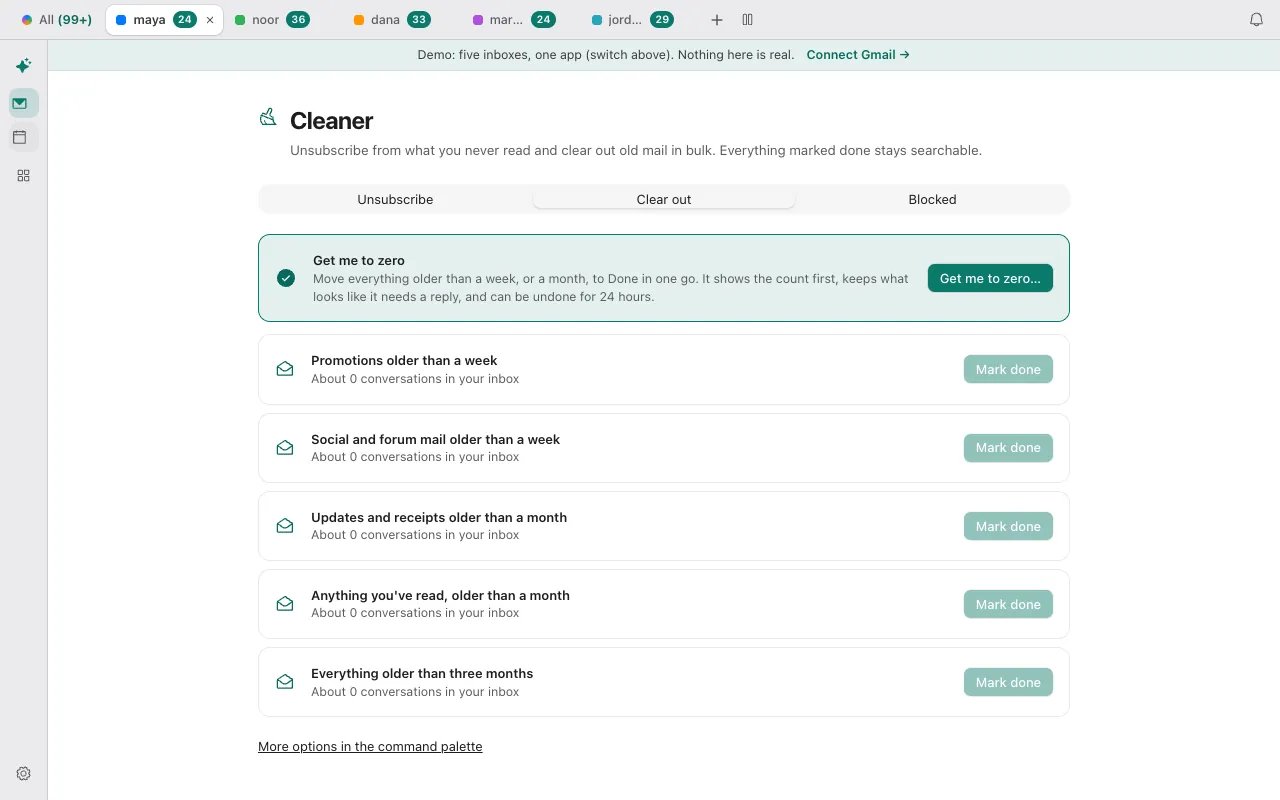
- 2. Clear out. Open the Clear out tab. Each row shows how many inbox conversations it covers: Promotions older than a week, Social and forum mail older than a week, Updates and receipts older than a month, Anything you've read older than a month, and Everything older than three months. Click Mark done on a row and confirm. That archives; it deletes nothing. Unlike Get me to zero, these rows do not keep starred, unread or reply-needed mail, work on messages, and have no 24-hour Undo; ⇧E or the Done view brings mail back one at a time. To delete instead, see how to mass delete emails.
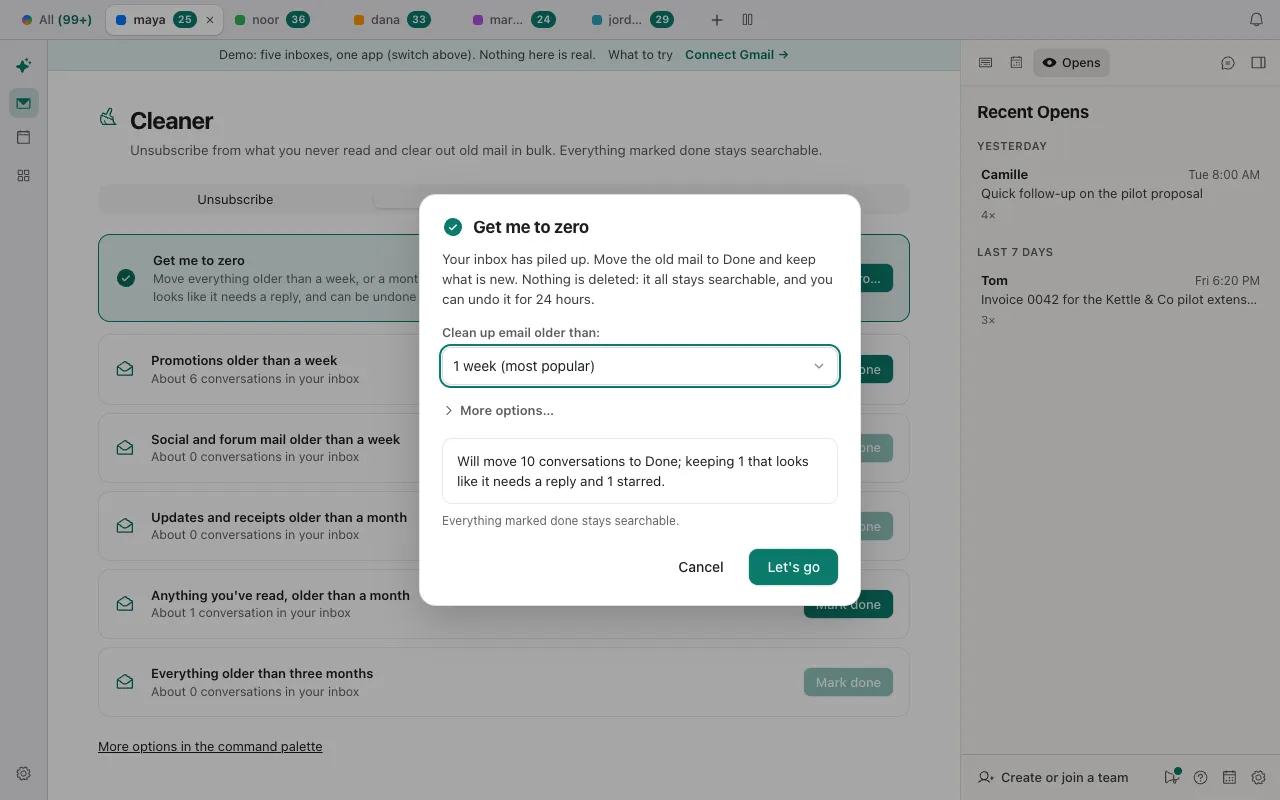
- 3. Get me to zero. For whatever is left, click Get me to zero… at the top of that tab, or press ⌘K and choose Get me to zero. Pick Clean up email older than: 1 week, 2 weeks, 1 month, 3 months or 6 months. It shows how many conversations it would move before it moves any, and keeps starred conversations, ones that look like they need a reply, and any with a draft of yours; unread conversations are moved unless you tick Keep unread under More options…. It reads up to 1,500 of an inbox's old conversations at a time and moves them 100 at a time; if more are left it says so, and you run it again. Click Let's go. You can undo it for 24 hours, in the same browser, from the Undo Get Me To Zero button on the Clear out tab, from ⌘K, or from Settings; the toast that appears when it finishes stays for about 20 seconds. Undo puts back only the Inbox label, and leaves alone anything you have since moved to Trash or Spam.
- 4. Archive what you keep. In the inbox, E marks a conversation done, which is archiving, and H is Remind me…, which takes it out of the inbox until a time you pick. Done (G then E) lists mail you have taken out of the inbox (not Sent, Drafts, Spam, Trash, reminders or muted), and ⇧E brings one back. See find archived emails and keyboard shortcuts.
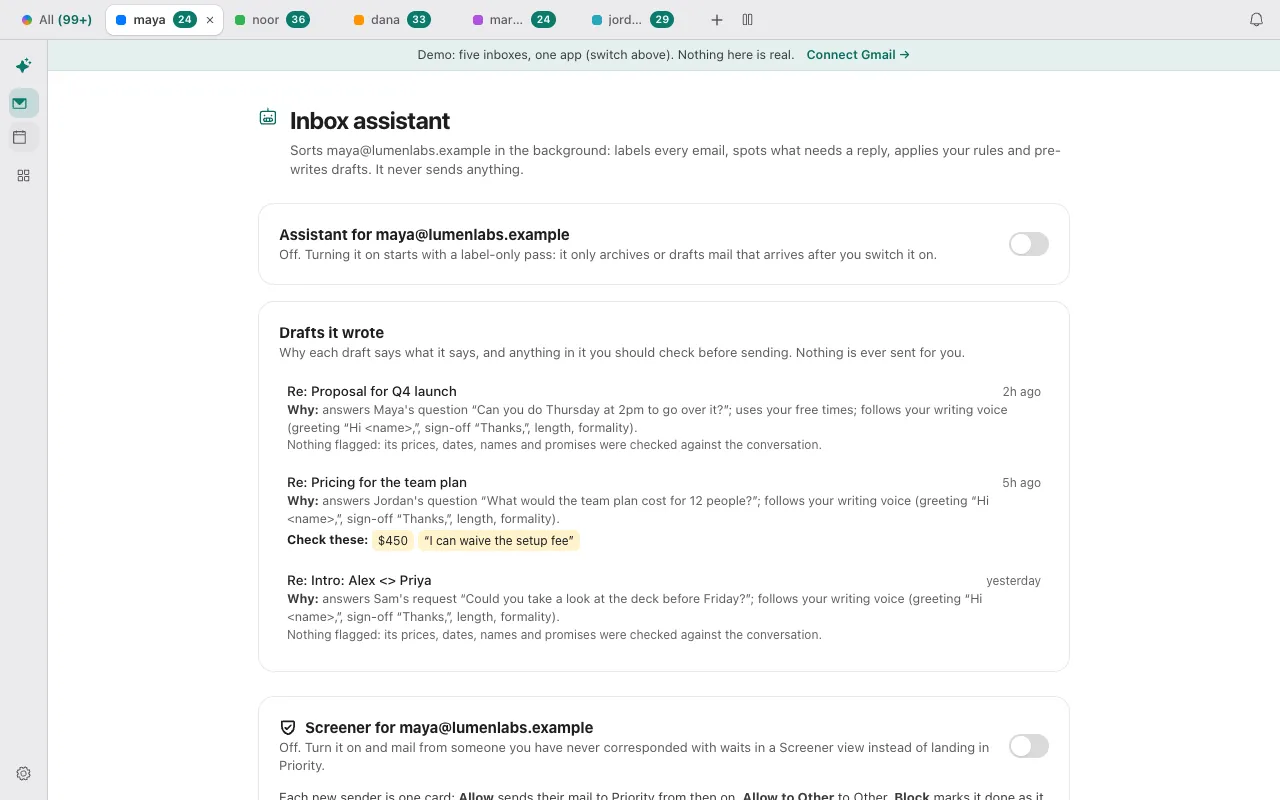
- 5. Stop the pile returning. Unsubscribe and Mark done in the Cleaner each save a rule that marks that sender's future mail done, and Block sends it to spam. The inbox assistant carries those rules out, and it is off until you switch it on: press ⌘K and choose Inbox assistant: rules, drafts, activity, then use the switch for the account. Under Your rules you can describe an email in plain English and pick an action such as Mark done. Once the assistant is on, the Auto-archive card has its own switch, off until you turn it on. It starts as a preview, so you see what it would do first; when you turn the preview off it takes automated mail you have not opened out of the inbox, at most 25 conversations per run, checking about every half hour.
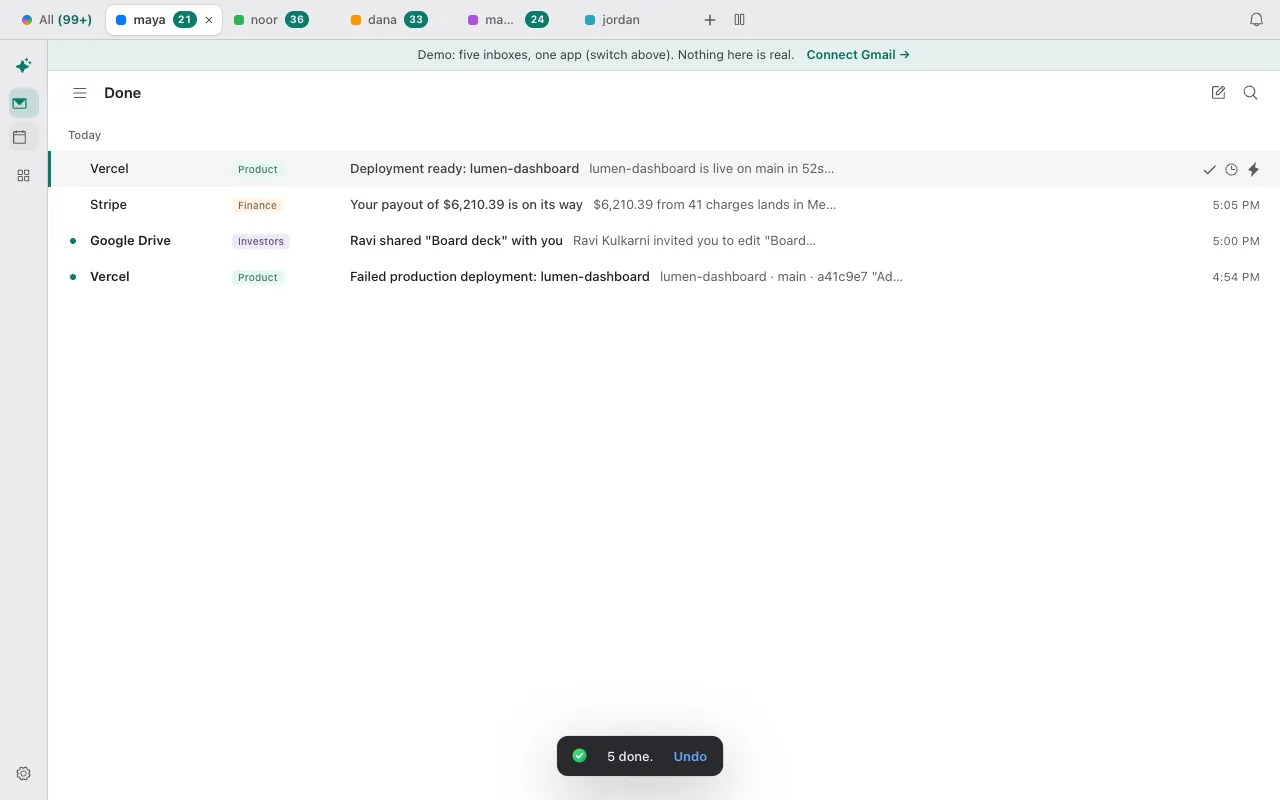
- Mark done and Get me to zero delete nothing. They remove mail from the inbox only, and it stays searchable. Block is different: it sends that sender's future mail to Spam. They free no storage; to get space back, delete and empty Trash, as in how to delete old emails.
- The assistant is optional. The Cleaner tabs and Get me to zero work without it. Only the standing rules need it: Block, and the rule that marks a sender's future mail done. It runs on Donezo's servers, so it needs Pro or a server-side AI key of your own (Settings, then AI). The page says it never sends anything.
- What Auto-archive leaves alone: mail you starred or labeled yourself, anything that needs a reply, anything from a real person in Priority, and anything that arrived before you switched it on.
- The Clear out tab counts only what is in the inbox. Mail that is already done is not counted.
Each stage works in the demo with sample mail. Open the live demo: it runs with sample mail, no sign-in.
Can Claude or Codex clean up your inbox?
Yes, in two safe steps: count first, then mark done. The connector's list_accounts tool gives the inbox and unread counts, and list_threads takes Gmail search syntax with a split option for bulk mail. One search returns at most 50 conversations per inbox, so ask for batches. The split filter is applied after those 50 come back, so a split search can return fewer than 50 even when more exist.
Read only: count first
Using Donezo, tell me how many conversations are in each of my inboxes and how many are unread. Then, per inbox, search in:inbox older_than:1m in the Other split (bulk mail) and list the ten senders that appear most. Do not change anything. If a search returns 50 for an inbox, say so, because that is the most one search returns.Reversible next step: mark done, not delete
Mark done (archive) the conversations in my inbox older than one month that are bulk mail from those ten senders. Work in batches of at most 50 (one search returns 50 at most), search again after each batch, and stop after 200 in total. Never touch mail from people. Tell me how many you changed per account. Do not trash anything.Mark done is an organizing action, so with the default setting, Read and write, with approval, it runs straight away and stays reversible: the mail is in Done and search. Each update_threads call takes up to 100 conversations from one account. Trashing counts as a delete and waits in Settings, then Developer, then Approvals, for your OK; requests expire after 24 hours. Trashing moves the conversation to Gmail's Trash, which Google empties after 30 days; Donezo Inbox's Gmail permission cannot delete mail permanently, and the connector cannot take a conversation back out of Trash, so restore it from Trash in Donezo Inbox or Gmail. A free account gets 30 actions that change mail, one per call, so a large clean-up is a Pro job; counting and searching stay free. A connection set to Read only can run the first prompt but not the second.
Tools involved: list_accounts, list_threads, update_threads. The full list, permissions and setup commands are in the connector documentation.
What if the inbox is still full?
- Get me to zero says Nothing to move. Nothing in the inbox is old enough, or what is old enough is being kept: starred conversations and ones that look like they need a reply stay by default. Choose a shorter age, or change the checkboxes under More options….
- Blocks and future-mail rules do nothing. The inbox assistant carries them out and it is off until you switch it on. Open the Inbox assistant page and use the switch; the Cleaner's Blocked tab says so when it is off.
- The unsubscribed sender still writes. Unsubscribing asks the sender to stop and Google says it can take a few days. Block them if they carry on.
- Gmail will not offer the Default inbox type. Google says it is unavailable when the inbox holds more than 250,000 emails. Delete or archive below that, then turn tabs on.
- The inbox fills up again within days. Add the missing piece from stage four: a filter in Gmail, or the rules and Auto-archive in Donezo Inbox's assistant.
- A filter missed the replies. Google says a reply to a filtered message is filtered only if the reply meets the same search criteria.
Questions
How do I clean up thousands of emails in Gmail?
Select a whole category or a search, click the link that selects all conversations, then Delete or Archive; Google describes the select-all link for Delete. Work in the order above so you do not delete what you would have kept. In Donezo Inbox, Get me to zero reads up to 1,500 old conversations per inbox at a time and moves them 100 at a time, so a big inbox takes a few runs; a Clear out row's Mark done works through up to 20,000 messages in one go.
What is the fastest way to clean up my Gmail account?
Selecting every conversation in Promotions and deleting them is the shortest route in Gmail, but unsubscribe first or they return. In Donezo Inbox, Get me to zero moves old mail to Done in one go, keeping starred conversations, ones that look like they need a reply, and ones with a draft of yours.
How do I delete 10,000 unread emails in Gmail?
Search for them, for example is:unread older_than:1y, select all conversations that match, and delete. The full steps are in how to delete old emails.
Does Get me to zero delete anything?
No. It removes the inbox label from old conversations and nothing else, so they stay searchable in Done, and it can be undone for 24 hours.
Do I have to switch on the inbox assistant to use the Cleaner?
No. The Cleaner and Get me to zero work without it. The assistant is needed for standing rules such as Block, and for Auto-archive.
Can Claude do the clean-up for me?
It can count and search without changing anything, then mark done in batches. Deleting waits for your approval under the default setting. The prompts are in the section above.