 Donezo Inbox
How to create email templates in Gmail
In Gmail on a computer, go to Settings, then See all settings, open the Advanced tab, click Enable next to Templates and click Save Changes. Then write your text in Compose, click More options, then Templates, then Save draft as template. To use it, open the same menu and pick it under Insert template. Donezo Inbox calls templates snippets: they are always on, fill in the recipient's first name, and are inserted with ⌘; or by typing ; and a name, then Tab.
How do you create and use a template in Gmail?
- Open Gmail on your computer and go to Settings, then See all settings.
- Open the Advanced tab.
- Next to Templates, click Enable.
- Click Save Changes at the bottom.
- Click Compose and write the text you want to reuse.
- Click More options, then Templates, then Save draft as template, then Save as new template.
- To use it, click Compose, then More options, then Templates. Under Insert template, choose the template, finish the message and click Send.
- Change a template: write the new text in Compose, click More options, then Templates, then Save draft as template, choose the template under Overwrite Template and click Save.
- Delete a template: in Compose, click More options, then Templates, then Delete template, choose it and click Delete. Google says you cannot recover a template after you delete it.
- As an automatic reply: a template can be sent by a filter. Click Show search options in the search box, enter your criteria, click Create filter, check Send template, choose the template and click Create filter.
- Computer only: Google says you can only turn on and use message templates from Gmail on your computer.
These steps follow Google's own documentation, read on October 20, 2026 for Gmail on the web (desktop). They were checked against the documentation, not clicked through in a real account. Google's page does not say how many templates you can keep, which Google Workspace plans include Templates, or whether a template keeps formatting, images or attachments. Menus change now and then; if a label differs, Google's page is the reference.
How do you create and use templates in Donezo Inbox?
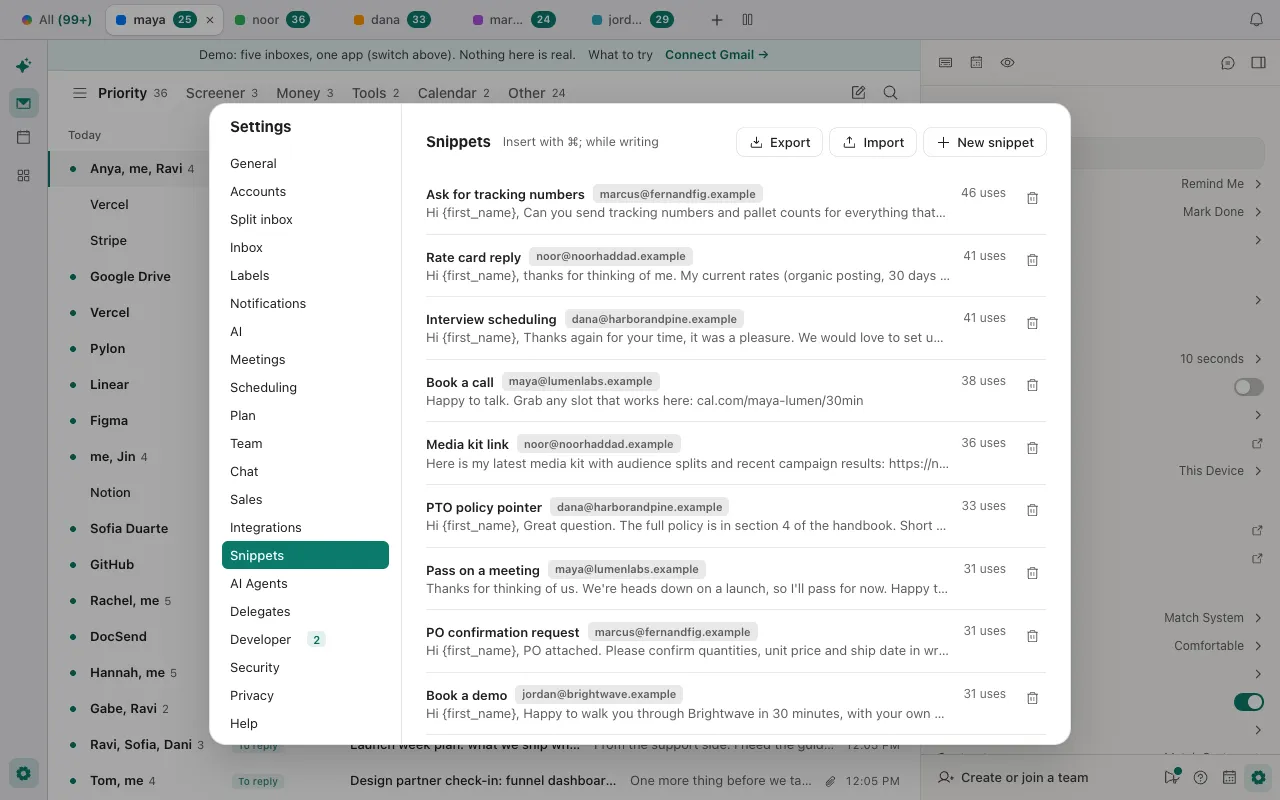
Donezo Inbox calls templates snippets. A snippet is a name and some text. It is always available, with nothing to switch on, and it belongs to you rather than to one inbox, so it works from every inbox you have linked unless you limit it.
- Press G, then ; to open Snippets in Settings, or press ⌘, and choose Snippets.
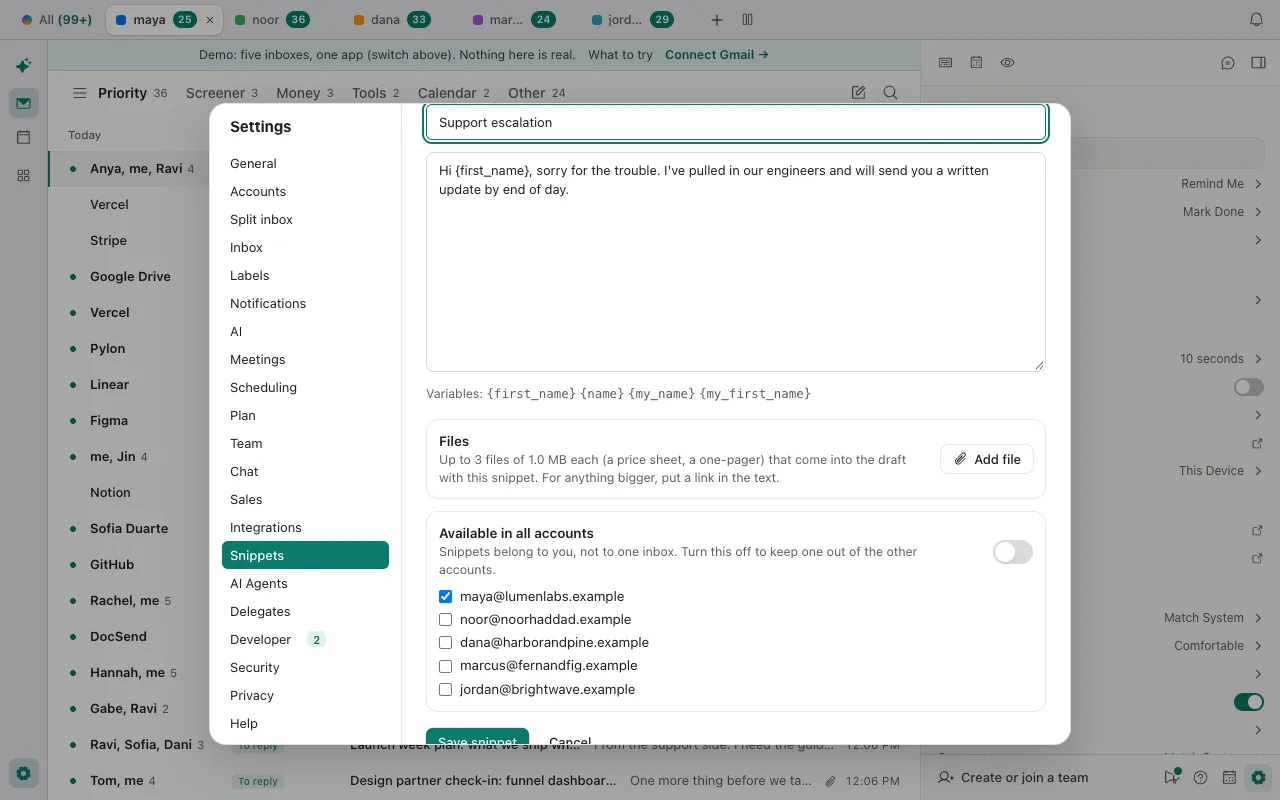
- Click New snippet. Type a name, then the text.
- To fill in details for you, put a variable in the text:
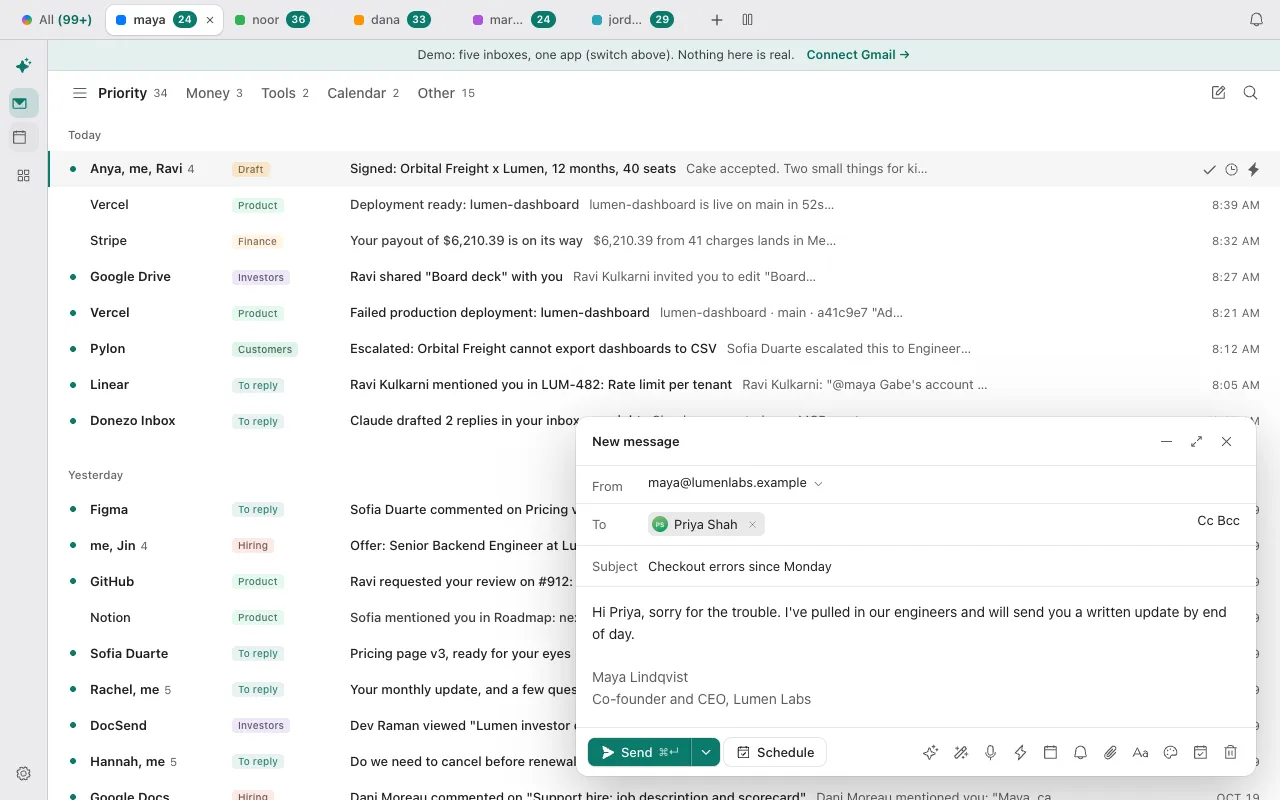
{first_name}(the first recipient's first name),{name}(their full name),{my_name}or{my_first_name}(yours, from the inbox you send from). “Hi {first_name}” becomes “Hi Priya”. - Optional: under Files, click Add file to attach up to 3 files of 1 MB each that come into the draft with the snippet. If you have more than one inbox, Available in all accounts can be switched off to keep the snippet to the inboxes you tick.
- Click Save snippet.
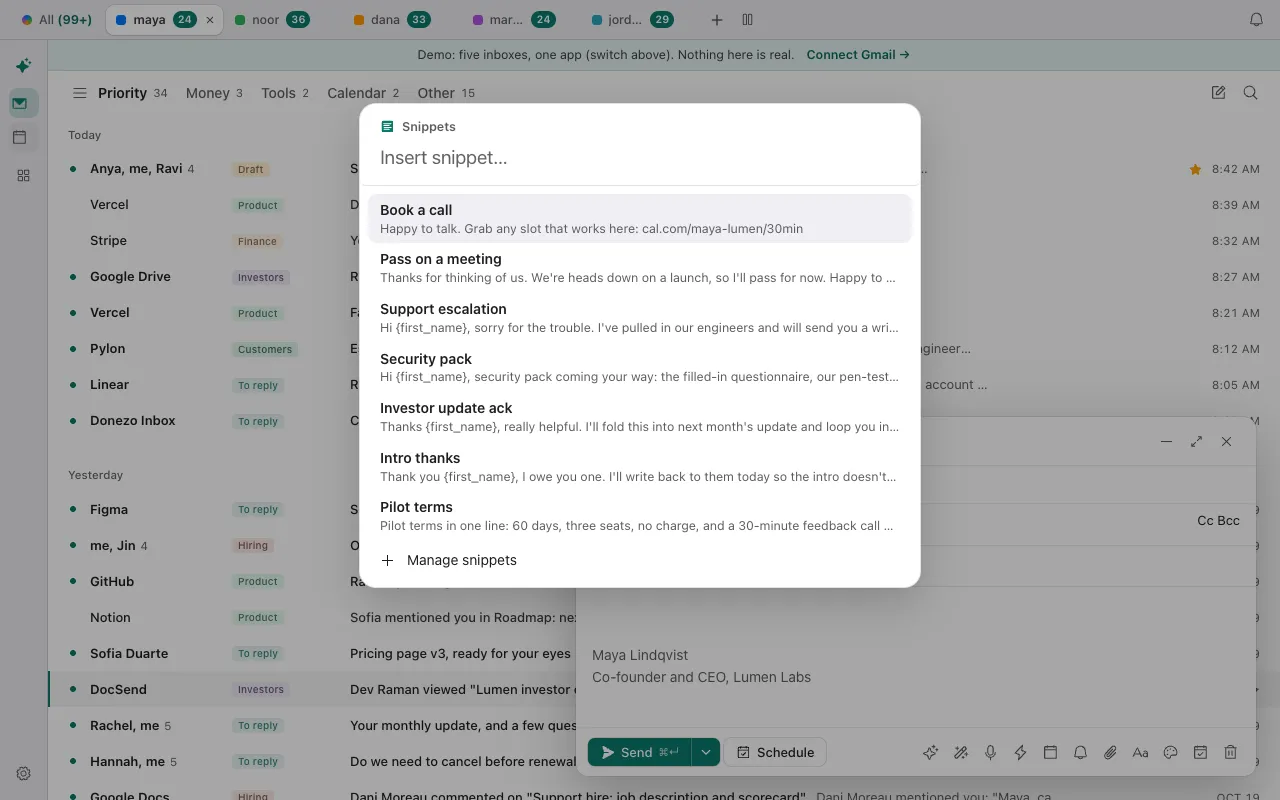
- To use it, open a draft (C for a new message, R to reply) and press ⌘; (Ctrl + ; on Windows), or click the Snippets button in the draft's toolbar. Type to search by name or text, then press Enter or click the snippet.
- Or type ; and the start of the name, such as
;support, then press Tab. The first snippet whose name starts with those letters goes in. - To change one, open Snippets, click its row, edit it and click Save snippet. The bin icon on a row deletes it. Export downloads every snippet as a JSON file, and Import adds them back; a snippet with the same name is replaced.
| Gmail Templates (from Google's page) | Donezo Inbox snippets | |
|---|---|---|
| Switch it on | Settings, See all settings, Advanced, Templates: Enable, then Save Changes. Computer only. | Nothing to switch on. Settings, then Snippets. |
| Make one | Write the text in Compose, then More options, Templates, Save draft as template. | Settings, then Snippets, then New snippet, and type the name and text there. There is no “save this draft as a snippet” button. |
| Insert one | Compose, More options, Templates, then pick it under Insert template. | ⌘; to search and pick, or ; and a name, then Tab. |
| Fill in a name for you | Google's page does not mention it. | {first_name}, {name}, {my_name}, {my_first_name}. |
| Send it as an automatic reply | Yes, with a filter and its Send template option. | No. A snippet is only inserted when you use it. |
| Files with it | Google's page does not mention it. | Up to 3 files of 1 MB each per snippet. |
| Formatting | Google's page does not mention it. | Plain text with line breaks; bold, colors and images are not stored. |
| Which inboxes | Google's page does not say. | Every linked inbox by default, or only the ones you pick. |
| Delete | Delete template, then Delete. Cannot be recovered. | The bin icon on the snippet's row. |
- If the name stays as typed: a
{first_name}or{name}is filled from the first person in the To line, so add the recipient before you insert the snippet.{my_name}is filled from the inbox you are writing from. - Names, text and limits: a snippet name can be up to 120 characters and its text up to 20,000. An import file adds up to 500 snippets.
- Another route, AI-drafted replies: ⌘J in a draft opens Write with AI, which writes from an instruction such as “decline politely and offer next week”, and Suggested replies (Settings, then General) offers three one-tap replies under conversations that need an answer. Both use the AI you choose in Settings, then AI; hosted AI is a Pro feature after a number of free calls, and your own key works free.
- Gmail's templates are not read by Donezo Inbox. Copy the text of each one into a new snippet, or write them as a JSON list of names and texts and use Import.
- Snippets are part of the free plan.
You can try snippets without signing in. The demo's snippets are samples, and each is limited to one of its five sample inboxes. Open the live demo: it runs with sample mail, no sign-in.
Can Claude or Codex use your snippets?
Partly. The connector's list_snippets tool reads your snippets, and create_draft saves a draft, so an agent can write a reply from one and fill in the variables itself. No tool creates, edits or deletes a snippet; that stays in Settings.
Safe first step: read the snippets
Using Donezo, list my snippets: the name of each, the first line of its text, and which inboxes it is limited to, if any. Do not change anything.Then a draft built from one, never sent
Find the most recent thread from Priya about checkout errors. Use my Support escalation snippet as the base for a reply, fill in her first name, and save it as a draft only. Do not send it. Tell me which inbox the draft is in.Neither prompt needs approval: reading and drafting run on every plan. Sending the draft would wait in Settings, then Developer, then Approvals under the default setting, Read and write, with approval, and the request expires after 24 hours. If you pass account, the list shows only the snippets usable from that inbox.
Tools involved: list_snippets, list_threads, create_draft. The full list, permissions and setup commands are in the connector documentation.
What if the template or snippet will not appear?
- Gmail: the template you saved is gone. If you deleted it, Google says it cannot be recovered. Otherwise it is under More options, then Templates, in the Insert template list.
- Gmail: the Templates menu is not in the Gmail app. Google says you can only turn on and use message templates from Gmail on your computer.
- Donezo: the snippet is not in the picker. It may be limited to other inboxes. Open it in Settings, then Snippets, and check the account switch and ticks. The picker lists the snippets for the inbox the draft is sent from.
- Donezo:
;nameand Tab does nothing. The cursor has to be right after the name, which can hold letters, digits and hyphens but no spaces (type;support-escalation, not;support escalation). The snippet must also be one you can use from the inbox you are writing from. - Donezo: the wrong snippet went in. The match is by the start of the name, and the first in the list wins, with the most used first. Type more of the name, or use ⌘; and pick.
- Donezo: Import says no snippets were found. The file must be an export from Donezo Inbox, or a list of items that each have a name and a body.
Questions
Where do I find my email templates in Gmail?
In a Compose window, click More options, then Templates. Your saved ones are listed under Insert template. In Donezo Inbox, press G, then ; to open them.
Why do I not have a template option in Gmail?
Templates have to be turned on first, under Settings, See all settings, Advanced, then Enable next to Templates and Save Changes. Google also says they work only from Gmail on a computer.
Where can I find email design templates for Gmail?
Google's page describes templates as text you save from your own draft; it does not describe ready-made designs. Donezo Inbox's snippets are text as well.
Can a template go out as an automatic reply?
In Gmail, yes: a filter has a Send template option. In Donezo Inbox, no; a snippet is only inserted by you.
Do snippets work across more than one Gmail account?
Yes. Snippets belong to you, not to one inbox, and work in every linked inbox unless you limit one to some of them.
Can I use a snippet in a reply, not only a new message?
Yes. Press R to reply, then ⌘; or type ; and a name, then Tab. The first person in the To line is the one whose name fills the variables.