 Donezo Inbox
How to delete all promotions in Gmail
Open the Promotions tab, tick the Select box at the top left, click the link that offers to select all conversations in Promotions, then click Delete. Gmail keeps the mail in Trash for 30 days and then deletes it for good. Deleting does not stop new promotions, so unsubscribe from the senders too. In Donezo Inbox, search category:promotions, press ⌘A, then # to move up to 500 at a time to Trash, with Undo.
How do you delete all promotions in Gmail?
- Open Gmail on your computer. On the left, select Promotions. If there is no Promotions tab, search
category:promotionsinstead, or turn the tab on: click Settings at the top right, set Inbox type to Default, click Customize, select Promotions and click Save. - Tick the Select box at the top left, above your messages. That selects everything on the current page.
- A notification shows the count, for example “All 50 conversations on this page are selected.” Click the link in it to select all conversations in Promotions.
- At the top, click Delete (the trash can).
- Read the first page before you delete: the select-all link takes every conversation in the tab, including the pages you have not looked at. Gmail sorts mail into tabs by itself, and Google says you can drag a message to another tab to correct it, so something you want may be sitting in Promotions.
- Only the old ones: search
category:promotions older_than:30dand use the same steps.older_than:takesdfor days,mfor months oryfor years. - Where it goes: deleted mail waits in Trash for 30 days, and you can move it back. After that Gmail deletes it permanently. To delete now, click More, then Trash, tick the messages and click Delete forever, or click Empty Trash now in the notification at the top.
- Stopping the next batch: deleting clears the tab once. To stop a sender, unsubscribe (see how to unsubscribe in bulk) or create a filter: click the Show search options icon in the search box, enter the sender, click Create filter and choose what it should do. Google says a filter can send mail to a label, or archive, delete, star or forward it.
These steps follow Google's own documentation, read on November 1, 2026 for Gmail on the web (desktop). They were checked against the documentation, not clicked through in a real account. Google's delete page names Promotions only as an example category, gives no limit on one delete, and does not say whether the select-all link appears after a search. Turning the tab on, the search words and filters follow support.google.com/mail/answer/3094499, 7190 and 6579, and the storage note support.google.com/mail/answer/6374270, all read the same day. Google's page also has Android and iPhone tabs that were not read. Menus change now and then; if a label differs, Google's page is the reference.
How do you delete all promotions in Donezo Inbox?
Donezo Inbox is an email client for Gmail. It does not show Gmail's Promotions tab: it sorts the inbox into splits such as Priority and Other, and Other holds every kind of bulk mail, so it is wider than promotions. Gmail's search words work in its search box, so category:promotions finds the mail Gmail files as promotions. There are two routes and they are not the same: Delete moves mail to Gmail's Trash, while the Cleaner's Clear out only archives it. Donezo Inbox never deletes permanently.
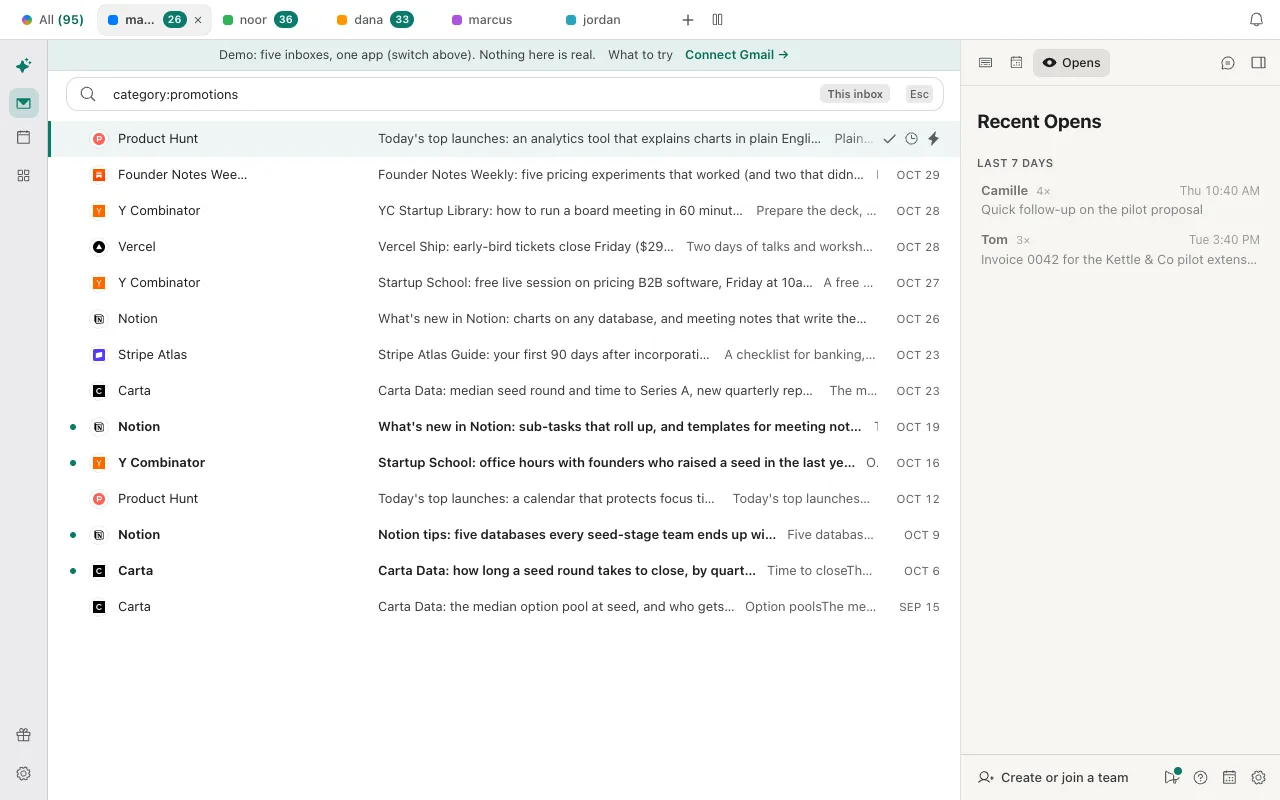
- Press / and search
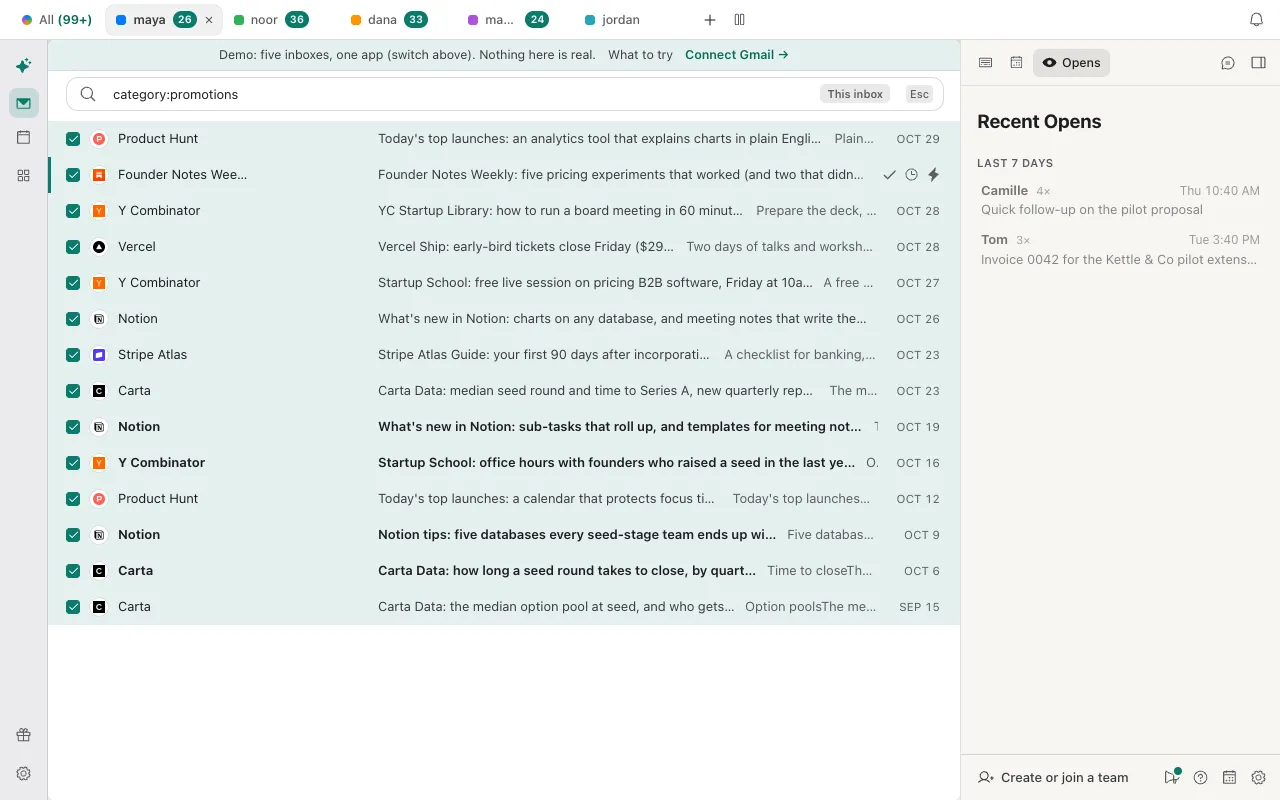
category:promotions. Addolder_than:30dto leave the last month alone. Search reads your whole mailbox, archived mail included, not only the inbox. Read the first screen of results. - Press ⌘A (Ctrl + A on Windows) to select the conversations loaded on screen. If the list is longer, click Select everything in this view (up to 500) in the bar above it.
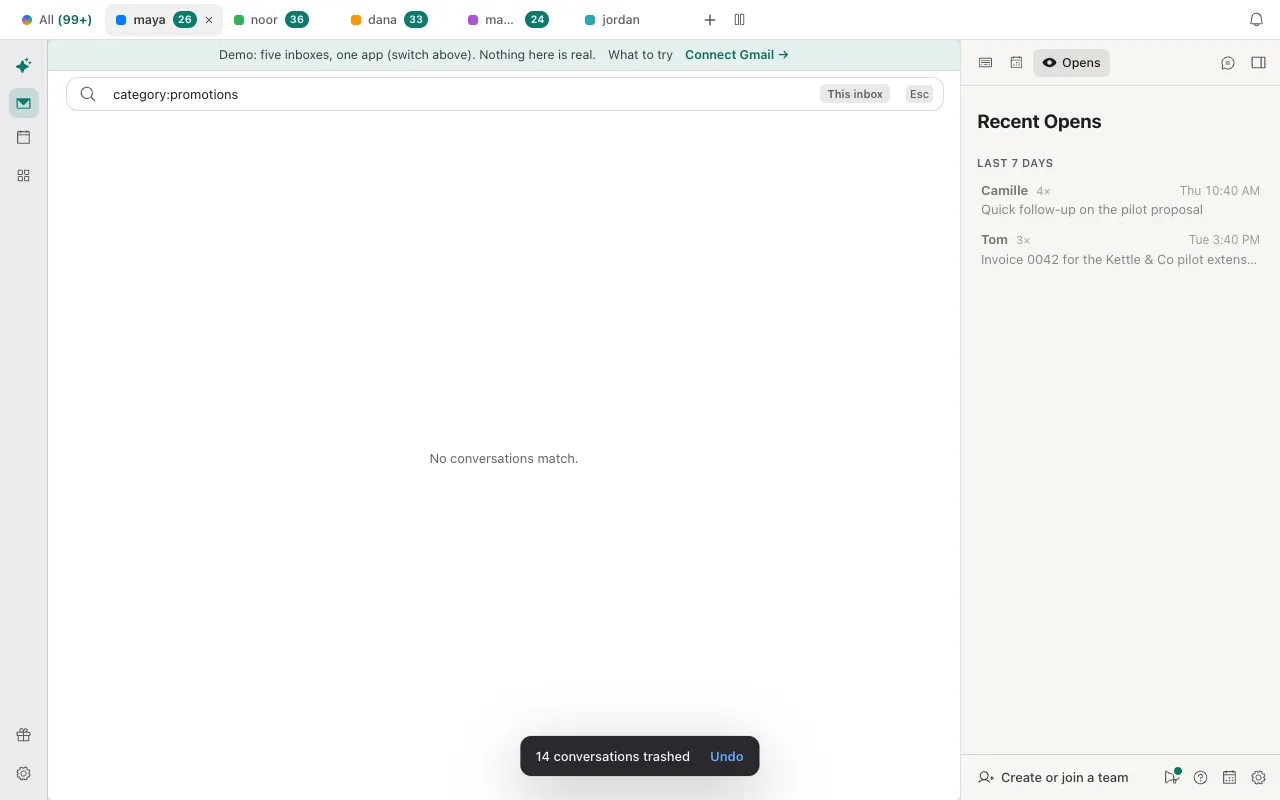
- Press #, or choose Delete (trash) from ⌘K. From 25 conversations up it asks you to confirm the number first. A toast says how many were trashed and offers Undo.
- If the view held more than 500, repeat for the next 500. The mail is in Gmail's Trash, which Google empties after 30 days; to empty it sooner, use Empty Trash now in Gmail.
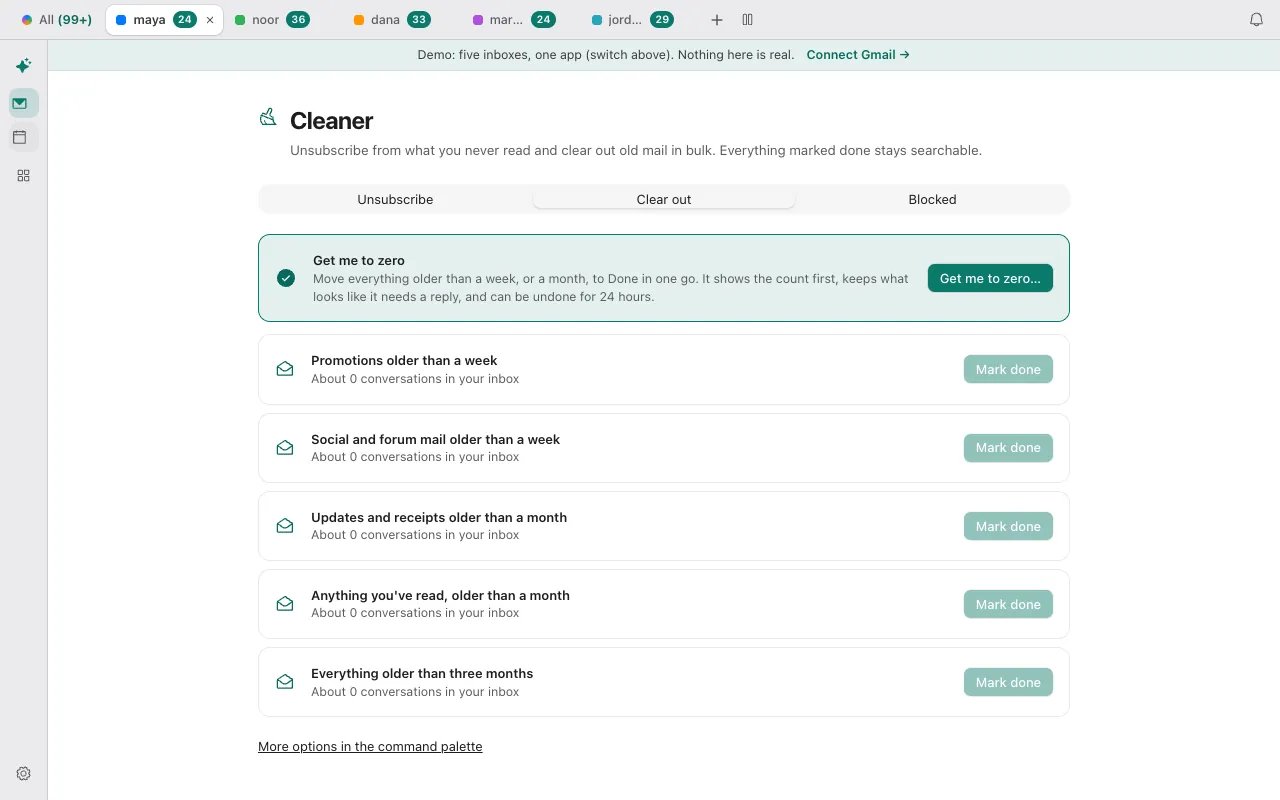
- To clear the inbox without deleting anything: open the Cleaner (the broom in the Tools dock, or ⌘K and choose Cleaner: unsubscribe and clear out), open the Clear out tab and click Mark done on Promotions older than a week. It shows how many inbox conversations it covers and asks you to confirm. That archives them; they stay searchable.
- To stop the next batch: on the Cleaner's Unsubscribe tab, Unsubscribe uses the sender's own unsubscribe link and marks their inbox mail done, as in the unsubscribe guide. For a sender that ignores it, see how to block a sender.
- Delete and Mark done are different: Delete moves the conversation to Trash. Mark done removes it from the inbox and deletes nothing. Google says mail in Trash counts against your storage until it is permanently cleared, and the figure can take 48 to 72 hours to update after a large delete. Mark done frees nothing: the mail is still in your account.
- Do not select all of Other: the Other split holds promotions, social mail, updates, forum mail and anything that carries a mailing-list header, not only promotions. Search
category:promotionswhen promotions are what you mean. - The Clear out row counts only the inbox: it covers promotions older than a week that are still in the inbox, not archived ones. Unlike Get me to zero, it does not keep starred, unread or reply-needed mail and has no 24-hour Undo; ⇧E or the Done view brings mail back one conversation at a time.
- Rules and Auto-archive need the inbox assistant: the rule that marks a sender's future mail done, and Auto-archive, which in Standard mode takes notifications, marketing and receipts you have not opened after 3 days out of the inbox, are carried out by the assistant. It is off until you switch it on, and it needs Pro or a server-side AI key of your own (Settings, then AI). Auto-archive starts as a preview and deletes nothing. The search, select and Trash steps above work without it.
The demo has sample promotions to search, select and trash; nothing there is stored. Open the live demo: it runs with sample mail, no sign-in.
Can Claude or Codex delete your promotions?
It can count and sort them for you, and the Trash move waits for your approval. The connector's list_threads tool takes Gmail search syntax, so category:promotions older_than:30d works; one search returns at most 50 conversations per inbox, so ask for batches. update_threads with the action trash takes up to 100 conversations from one account per call. unsubscribe uses the sender's one-click unsubscribe when it offers one.
Read only: count and list the senders
Using Donezo, search each of my inboxes for category:promotions older_than:30d. Per account, tell me how many conversations come back (one search returns 50 at most, so say if you hit that) and list the ten senders that appear most, with one example subject each. Do not change anything.Then trash one sender at a time
Move the conversations from news@example.com that match category:promotions older_than:30d to Trash, in batches of at most 100. Before each batch, tell me how many it holds, and stop if any of them is not from that sender.Stop the next ones
For the three senders you listed most often, unsubscribe using the one-click option if the sender offers one. If one does not, say so and leave it: I will do it myself.Moving to Trash counts as a delete. With the default setting, Read and write, with approval, every Trash request waits in Settings, then Developer, then Approvals until you approve it, and expires after 24 hours. Unsubscribing is an organizing action and runs straight away, so check the senders in the first answer before you send the third prompt. Trashing moves the conversation to Gmail's Trash, which Google empties after 30 days; Donezo Inbox's Gmail permission cannot delete mail permanently. A free account gets 30 actions that change mail, one per call, so a large clean-up is a Pro job; counting and searching stay free. A connection set to Read only can run the first prompt but not the others.
Tools involved: list_threads, update_threads, unsubscribe. The full list, permissions and setup commands are in the connector documentation.
Why are promotions still in your inbox after you delete them?
- Only part of the tab was deleted. Ticking Select selects the page you can see. Click the link in the notification that offers to select all conversations before you click Delete.
- There is no Promotions tab in Gmail. Tabs are off or not in your inbox type. Click Settings, set Inbox type to Default, click Customize and select Promotions. Google says Default is not available if your inbox holds more than 250,000 emails; delete or archive until you are under that. Searching
category:promotionsworks without the tab. - The promotions came back within days. Deleting does not unsubscribe you. Unsubscribe from the senders, or add a filter in Gmail; in Donezo Inbox, the Cleaner's Unsubscribe tab, plus its rules once the inbox assistant is on.
- You deleted something you wanted. It is in Trash for 30 days: open Trash, tick it and move it back. In Donezo Inbox, click Undo in the toast straight after, or restore it from Trash.
- Donezo Inbox stopped at 500. That is its limit per pass. It says “Selected the first 500 conversations. That is the most at once.” Run the same steps again.
- The Cleaner's Promotions row is greyed out. Its count is zero. The row covers only promotions older than a week that are still in the inbox; archived promotions and newer ones are not counted.
Questions
Is it safe to delete all promotions in Gmail?
Mostly, because deleted mail waits in Trash for 30 days and can be moved back. The risk is the select-all link: it takes everything in the tab, and Gmail sorts mail into tabs itself, so read the first page and narrow the search if anything on it should stay.
How do I delete promotions older than 30 days in Gmail?
Search category:promotions older_than:30d, tick Select, click the link that selects all matching conversations, and click Delete. Google does not say whether the select-all link appears after a search; if it does not, delete page by page.
How do I delete 30,000 emails at once in Gmail?
Select a whole category or search and click the link that selects all of its conversations, then Delete; Google publishes no limit per delete. In Donezo Inbox one pass handles up to 500, so 30,000 takes 60 passes. To get them out of the inbox rather than delete them, a Clear out row's Mark done works through up to 20,000 messages in one go.
Can I delete promotions on my phone?
This guide covers a computer. Google's page has Android and iPhone tabs that were not read for it, so it makes no claim about them.
Does deleting promotions unsubscribe me?
No. It removes the mail you have, and the senders carry on. Unsubscribe, filter or block them to stop new mail.
Can Claude delete my promotions?
It can count and list them without changing anything, then move them to Trash in batches once you approve each request. The prompts are in the section above.