 Donezo Inbox
How to block a sender in Gmail
Open a message from the sender in Gmail on your computer, click More at the top right next to Reply, then click Block and the sender's name. Their future emails go to Spam; to undo it, open Settings, See all settings, Filters and Blocked Addresses. For a newsletter you signed up to, unsubscribing is the gentler option, and to quiet one conversation you can mute it. In Donezo Inbox, press ⌘K and choose Block sender: the conversation goes to Spam at once, and new mail follows once the inbox assistant is on or you add the Gmail filter.
How do you block a sender in Gmail?
- Open Gmail on your computer.
- Open a message from the sender you want to block.
- At the top right, next to Reply, click More, then Block and the sender's name.
- To undo it: open a message from the sender, click More, then Unblock and the name. Or click Settings, then See all settings, then Filters and Blocked Addresses, tick the sender and click Unblock selected addresses.
- What it does: future emails from a blocked sender go to Spam. After you unblock, their future emails go to your inbox. Google says Gmail tries to keep spam out of your inbox but some may still get through.
- One address at a time: Google's page describes blocking individual sender addresses. It does not say whether you can block a whole domain.
- Report spam instead: select the message and click the Report spam icon at the top. It is added to Spam, Google receives a copy and may analyze it, and Google says emails from the same sender might go to Spam in future. To undo it, open More, then Spam, tick the message and click Not spam. Google says that does not apply to blocked senders: their mail still goes to Spam.
- Mute instead: mute covers one conversation, not a sender. Tick the message, click More, then Mute, or check the box and press M. Replies skip your inbox and go to the archive, labeled Muted;
is:mutedfinds them. Google lists three cases where a muted message still reaches your inbox: it is sent only to you, it is sent to a Google Group you belong to, or someone adds you to To or Cc. - Unsubscribe instead: for promotions and newsletters you signed up for, Google suggests unsubscribing rather than blocking. The steps are in how to unsubscribe from emails in Gmail in bulk.
- If you feel unsafe: Google's page says that if someone uses Gmail to harass, intimidate or threaten you and you feel in danger, you should contact your local authorities right away. Blocking does not replace that.
These steps follow Google's own documentation, read on November 1, 2026 for Gmail on the web (desktop). They were checked against the documentation, not clicked through in a real account. Google's page does not say whether you can block a whole domain, whether the sender is told, or how many addresses you can block, and its steps are for a computer. The Report spam and mute notes follow support.google.com/mail/answer/1366858 and 16594169, both read the same day. Menus change now and then; if a label differs, Google's page is the reference.
How do you block a sender in Donezo Inbox?
Donezo Inbox, an email client for Gmail, keeps its own block list for each inbox, and a block has two layers worth telling apart. The block is a rule saved on Donezo's servers, and the inbox assistant moves the sender's new mail to Spam as it arrives. The assistant is off until you switch it on, and it needs Pro or a server-side AI key of your own; a block itself makes no AI call. The second layer is optional and needs no assistant: a real Gmail filter, so Gmail itself files their mail as Spam. Nothing is deleted either way.
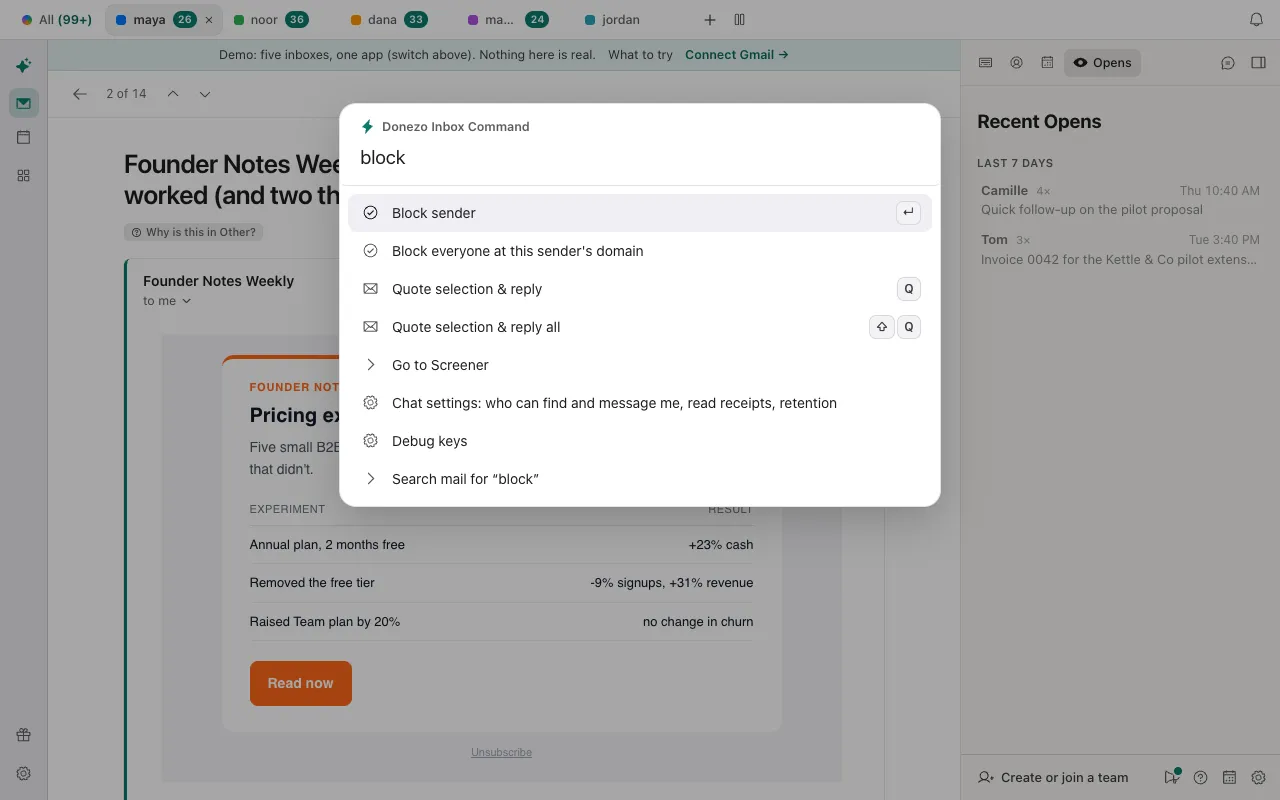
- Open a message from the sender, or put the cursor on its row. Press ⌘K (Ctrl + K on Windows), type block and choose Block sender. To block everyone at their company, choose Block everyone at this sender's domain; it is not offered for a mailbox provider such as gmail.com.
- The block is saved for that inbox, and the conversation you were on moves to Spam. A toast gives you about nine seconds to click Undo. If the assistant is off, the toast says to turn it on.
- Switch the assistant on so new mail is filed: press ⌘K, choose Inbox assistant: rules, drafts, activity and use the switch for the account. From then on, mail from that address that arrives after the block goes to Spam, and the assistant's activity log says “You blocked” and the address. It checks one inbox a minute, so a message can sit in the inbox briefly before it moves.
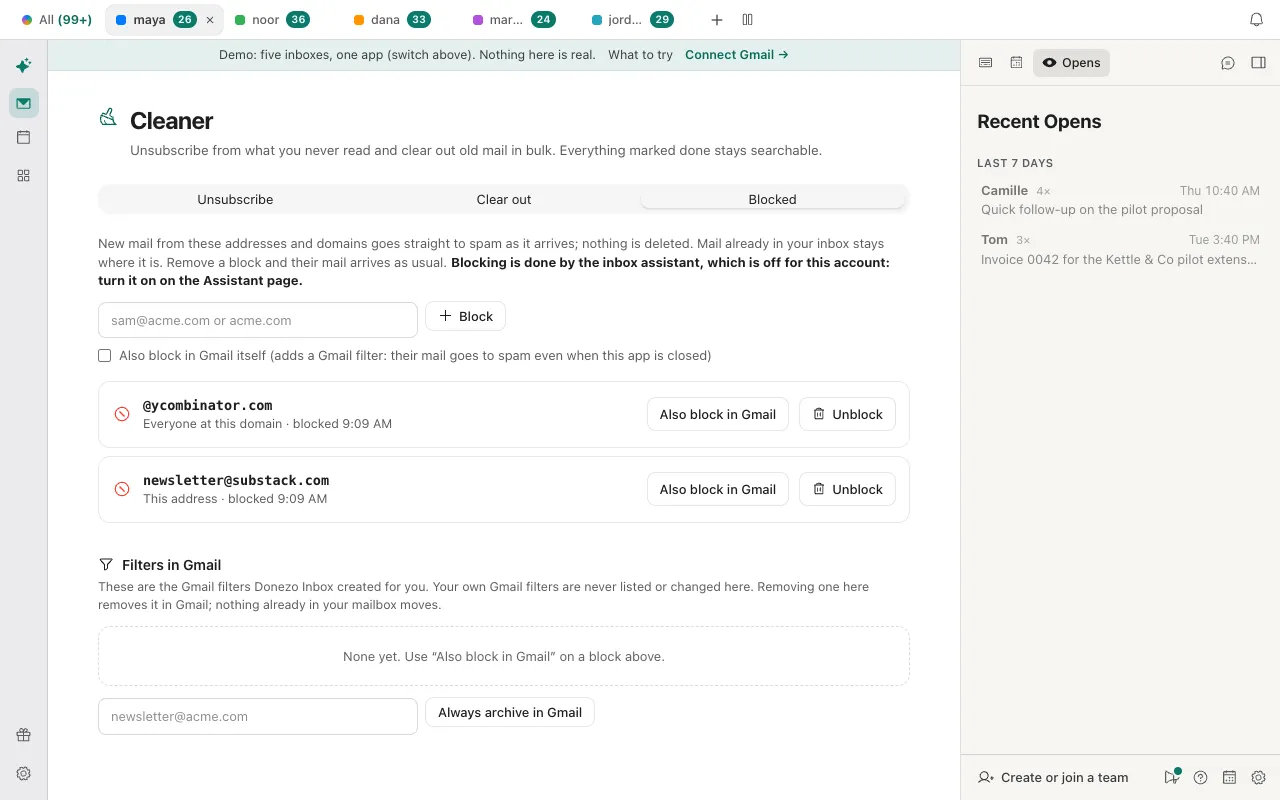
- To have Gmail file their mail as well: open the Cleaner (the broom in the Tools dock, or ⌘K and choose Cleaner: unsubscribe and clear out) and open the Blocked tab. Tick Also block in Gmail itself before adding a block, or click Also block in Gmail on a row. The first time, Gmail asks you to let Donezo Inbox create filters for that account. The filter files that sender's mail as Spam and out of the inbox; it keeps working when Donezo Inbox is closed, in other Gmail apps, and with the assistant off.
- To block without an open message: type an address or a domain into the box on the Blocked tab and click Block.
- To unblock: click Unblock beside the row. That removes the rule, and the Gmail filter Donezo Inbox made for it. Anything already in Spam stays there. The list under Filters in Gmail shows the filters Donezo Inbox created, and never your own.
- A block reaches only new mail: apart from the conversation you blocked from, it acts on mail that arrived after the block was made. Older mail from that sender stays where it is. To clear it, search
from:and the address, select the conversations and press ! (Report spam) or # (Trash). - Without Pro or a key of your own: a free account cannot switch the assistant on, so the block rule alone does nothing for new mail. Use Also block in Gmail, the Screener below, or Gmail's own Block, which works on the same mailbox you read in Donezo Inbox.
- Report spam (!) moves the selected conversations to Spam, with Undo, and asks you to confirm from 25. It blocks no one: the next message from the sender is not affected. Donezo Inbox's version changes the conversation's labels; it does not state that it also sends Google a report, which Google describes for its own button.
- Mute (⇧M) is for a conversation, not a sender. It archives the conversation and keeps archiving new replies, with the assistant on or off, and ⇧M again unmutes. Gmail's API has no mute, so Donezo Inbox keeps its own Muted label,
Donezo/Muted. - Unsubscribe is on the Cleaner's first tab, and ⌘U unsubscribes from the sender of the open email. It asks the sender to stop, while a block sends whatever they still send to Spam.
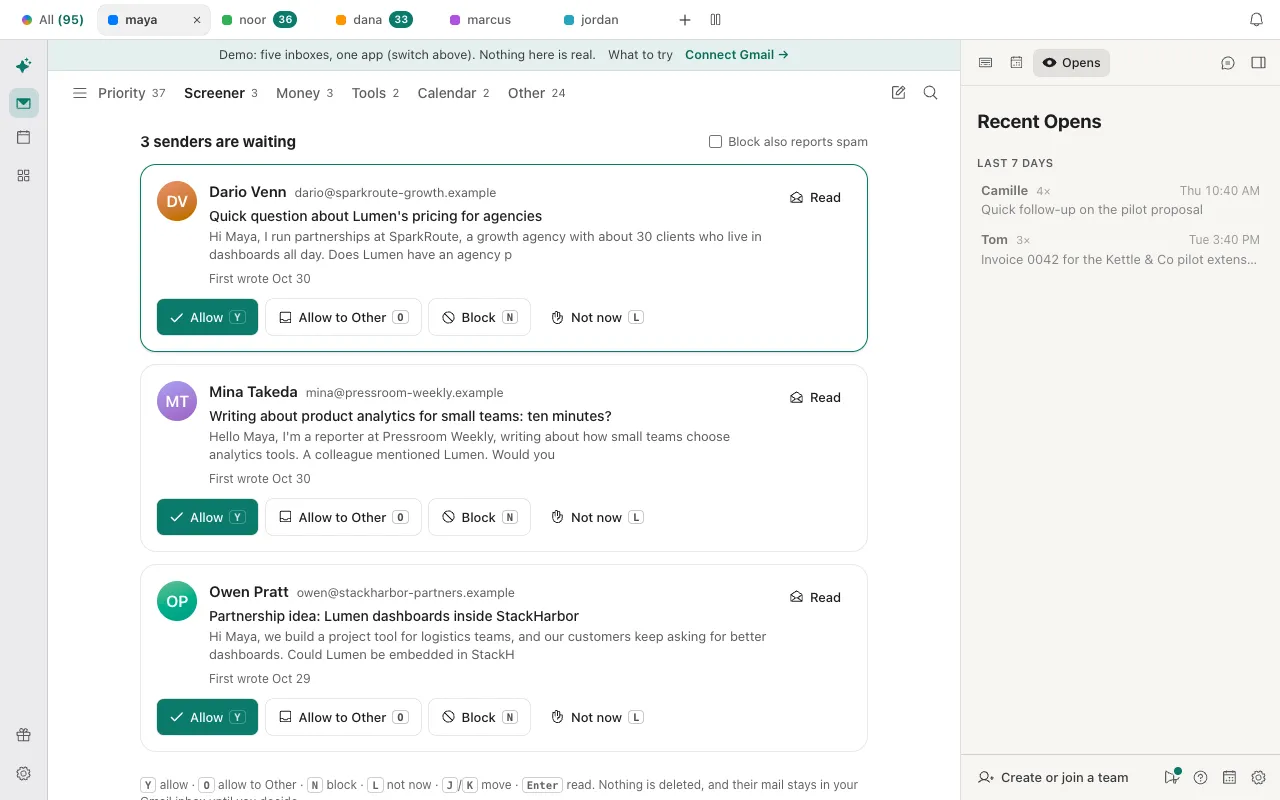
- The Screener blocks strangers before they reach you, and needs no plan and no AI. Switch it on per account in Settings, then Inbox assistant, then Screener. Mail from someone you have never corresponded with waits in a Screener tab with the name, address and first lines. Block (N) marks that sender's conversations and their later mail done; tick Block also reports spam first and it goes to Spam instead. Switching it on never touches mail already in your inbox.
The demo has sample senders to block, and its Blocked tab lists them; nothing is stored. Open the live demo: it runs with sample mail, no sign-in.
Why does a blocked sender still reach you?
- Mail from a blocked sender still arrives in Gmail. The sender may be writing from another address. Google's page describes blocking individual addresses, so block the new one too, or report the message as spam.
- You cannot find Block in Gmail. Open the message first. Block is under More at the top right, next to Reply, and is not in the list view.
- A blocked sender still lands in Donezo Inbox's inbox. The inbox assistant moves it, and it is off until you switch it on; the toast and the top of the Blocked tab both say so. Without Pro or an AI key of your own it cannot be switched on: tick Also block in Gmail itself instead. A block only reaches mail that arrived after it was made.
- Also block in Gmail asks for a permission. Expected the first time: Gmail has to let Donezo Inbox create filters for that account. Blocking inside Donezo Inbox works without it.
- Donezo Inbox will not block everyone at a domain. A domain block is refused for a mailbox provider such as gmail.com, because it would catch strangers. Block the address instead.
- You blocked someone by mistake. In Gmail, open one of their messages, click More, then Unblock. In Donezo Inbox, click Undo in the toast within about nine seconds, or Unblock on the Blocked tab. Their earlier mail is not moved back out of Spam.
- A muted conversation came back. Google lists three cases: the message is sent only to you, to a Google Group you belong to, or someone adds you to To or Cc.
Questions
What happens when you block someone in Gmail?
Their future emails go to Spam, and they come back to your inbox if you unblock them. Google's page does not say whether the sender is told. In Donezo Inbox a block changes labels and saves a rule; it sends nothing to the sender.
What is the difference between blocking, muting, reporting spam and unsubscribing?
Blocking sends a sender's future mail to Spam. Muting takes one conversation out of your inbox, replies included. Reporting spam moves the messages you selected to Spam and sends Google a copy. Unsubscribing asks a mailing list to stop, and only works with senders that honor it.
Is it better to block unwanted emails or just delete them?
Deleting removes the messages you have; the sender's next email still arrives. Blocking changes where their future mail goes. For a newsletter you once signed up for, Google suggests unsubscribing instead.
Can I block a whole domain?
Google's page does not say. In Donezo Inbox, Block everyone at this sender's domain does, except for mailbox providers such as gmail.com.
Can Claude or Codex block a sender for me?
Not directly. The connector has no tool that blocks a sender, and a rule added through it can mark done, mark read, star, label or draft, but not send mail to Spam. It can move conversations you name to Spam, which waits for your approval under the default setting, and it can unsubscribe from a mailing list that offers a one-click option. The block itself you set in Donezo Inbox.