 Donezo Inbox
How to create filters in Gmail
In Gmail on a computer, click Show search options in the search box, enter your criteria, click Search to check the results, then click Create filter, choose what the filter should do and click Create filter again. A filter can send mail to a label, archive it, delete it, star it or forward it. Donezo Inbox only does part of this job: it has no screen for writing a Gmail filter from criteria of your own, but it can create a real Gmail filter to archive or block one sender, and its inbox assistant applies rules you write in plain English to new mail.
How do you create a filter in Gmail?
- Open Gmail.
- In the search box at the top, click Show search options.
- Enter your search criteria. To check that the search works, click Search and look at the emails that show up.
- At the bottom of the search window, click Create filter.
- Choose what you want the filter to do.
- Click Create filter.
- From one email: tick the box next to the message, click More, click Filter messages like these, enter the criteria and click Create filter.
- What a filter can do: Google says it can send mail to a label, archive it, delete it, star it or forward it.
- Change or remove one: click Settings at the top right, then See all settings, then Filters and Blocked Addresses. Find the filter, click Edit or Delete, and confirm with Update filter or OK.
- Move filters between accounts: on the same tab, Import filters reads a file, and ticking a filter and clicking Export saves an .xml file.
- Limits Google gives: a filter that forwards mail affects only new messages, and a reply to a filtered message is filtered only if the reply meets the same search criteria. Google's page states no limit on how many filters you can have.
- Not on Google's page: it does not say whether a new filter is also applied to mail already in your mailbox, so check the results after you create one.
These steps follow Google's own documentation, read on November 1, 2026 for Gmail on the web (desktop). They were checked against the documentation, not clicked through in a real account. Google's page was read for the computer steps only. It does not list the options in the filter dialog one by one, and it does not say whether a filter also acts on existing mail. Menus change now and then; if a label differs, Google's page is the reference.
What does Donezo Inbox do instead of, or beside, Gmail filters?
Donezo Inbox is an email client for Gmail and Google Workspace. It has no screen for building a Gmail filter from your own criteria, such as a subject, a word or an attachment, and it does not list, edit or delete the filters you made in Gmail: yours stay in Gmail and keep running. It covers three nearby jobs, and the steps below say which is which.
- Sort one sender or company into a tab, without changing Gmail. Open Settings, then Split inbox, scroll to Rules, type an address or a domain such as acme.com, choose a split and click Add rule. Mail from that sender shows under the tab you chose. An exact address beats its domain, and a domain rule is refused for mailbox providers such as gmail.com. This changes which tab shows the mail, not what is in your Gmail inbox. Splits themselves are in how to split your Gmail inbox.
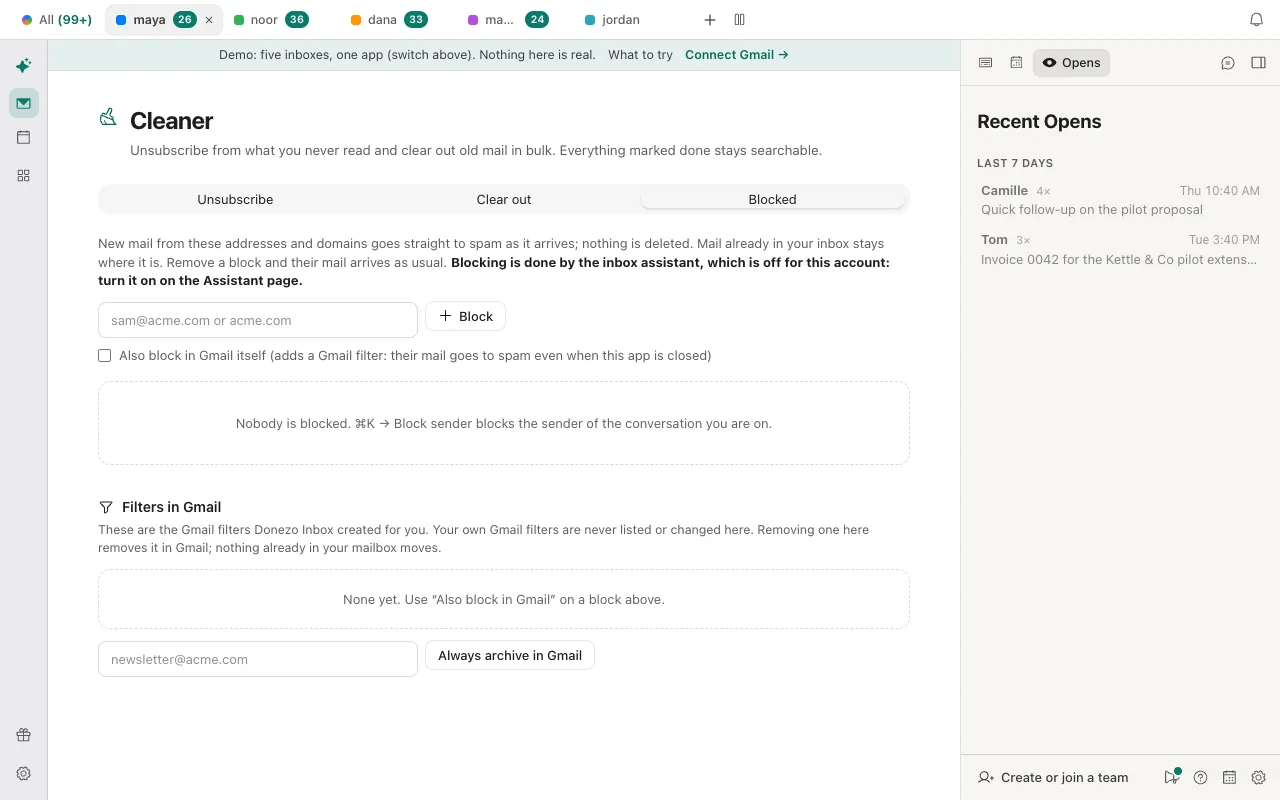
- Have Gmail archive or block a sender with a real Gmail filter. Press ⌘K, choose Cleaner: unsubscribe and clear out and open the Blocked tab. To block, type an address or a domain, tick Also block in Gmail itself and click Block. To always archive one address, type it under Filters in Gmail and click Always archive in Gmail. The first time, a card says Donezo Inbox needs more access to the account and offers Grant access; it names the access Gmail settings and says it sets your vacation responder and Gmail filters and cannot read your mail.
- Describe the mail in words and pick what happens to it. Press ⌘K, choose Inbox assistant: rules, drafts, activity and switch the assistant on for the account; it is off until you do. Under Your rules, type what the email is, for example “Emails from investors or anyone at a venture firm”, then tick Mark done, Mark read, Star or Draft a reply, or type a Label (it is created in Gmail if it is missing). Tick All my accounts to cover every inbox, and click Add rule. The Rule library under the form adds ready-made rules in one click: 22 of them, in six groups (Founders, Sales, Hiring, Finance, Support, Everyone).
- Test a rule before you trust it. On the same page, Try it on an email takes a sender, a subject and the text. Classify shows how the assistant would sort it and which of your rules would fire; the page says nothing is changed.
- Pause or remove. Each rule has a switch and a trash button. A Gmail filter that Donezo Inbox created is removed with Remove under Filters in Gmail, and that removes it in Gmail as well; unblocking a sender removes its filter too.
| Job | Where | Changes Gmail itself? | Needs |
|---|---|---|---|
| Show one sender's mail under a tab | Settings, then Split inbox, then Rules | No | Nothing extra; split inbox is on every plan |
| Archive one address's new mail | Cleaner, then Blocked, then Always archive in Gmail | Yes: a Gmail filter that skips the inbox | Gmail settings access, granted from the same page |
| Block a sender or a domain | Cleaner, then Blocked | Only if you tick Also block in Gmail itself; then a Gmail filter files their mail as spam | The assistant switched on for the block to work inside the app; the Gmail filter needs the access above |
| Act on mail you describe in words | Inbox assistant, then Your rules | Yes: labels, stars, marks done or read on new mail | The assistant, which needs Pro or a server-side AI key of your own |
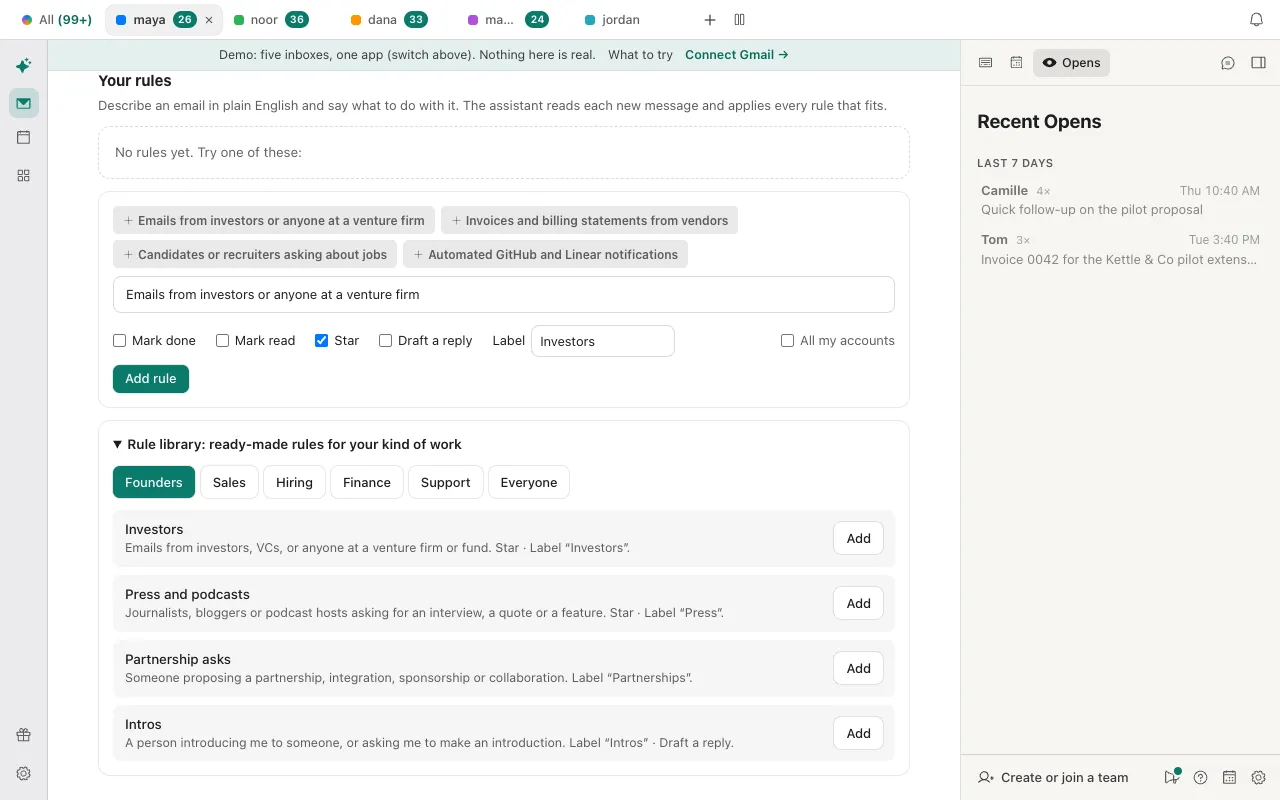
- A rule is a judgment, not an exact match. The assistant reads each new message and applies every rule that fits, so a rule can miss or over-reach. For an exact match on an address, use a Gmail filter or a sender rule instead.
- Rules act on new mail only. The assistant labels what is already in the inbox when you switch it on, but a rule's actions (mark done, mark read, star, label, draft) touch only mail that arrived after you switched it on. A block you made yourself reaches only mail that arrived after the block.
- Nothing is deleted and nothing is sent. A block moves mail to Spam, and an archive filter only skips the inbox. The Inbox assistant page says it never sends anything.
- The assistant is not free. It runs on Donezo's servers, so it needs Pro (a new account has a free Pro trial) or a server-side AI key of your own under Settings, then AI. The sender rules in the first step and the Gmail filters in the second work without it, apart from blocks as noted in the table.
- Your own Gmail filters are never listed or changed. Only the Gmail filters Donezo Inbox created appear under Filters in Gmail.
Both screens open in the demo with sample mail. The demo's assistant is off, so nothing is filtered there. Open the live demo: it runs with sample mail, no sign-in.
Can Claude or Codex add a rule for you?
Partly. Through the Donezo Inbox connector, list_rules shows your plain-English rules and add_rule and delete_rule change them. There is no connector tool for Gmail filters, so Claude cannot create one; it can only add an assistant rule. Ask for the list first, then for one rule written out before it is added.
Read only: the rules that exist
Using Donezo, list my inbox rules and say which accounts each one covers. Only list them. Do not change anything.Then one rule, worded first
Write one Donezo rule: when an email is an invoice or billing statement from a vendor, add the label Bills and do nothing else. Show me the exact sentence and the actions first, and apply it to my work inbox only.add_rule and delete_rule wait for your approval under the default setting, Read and write, with approval: the request sits in Settings, then Developer, then Approvals, and expires after 24 hours. Nothing changes until you approve it. A free account has a limited number of agent actions that change mail, and rules count among them; reading and listing do not. A rule added this way acts only on mail that arrives after the assistant is switched on for the account.
Tools involved: list_rules, add_rule, delete_rule. The full list, permissions and setup commands are in the connector documentation.
What if a filter or rule does not do what you expected?
- A Gmail filter did not catch a reply. Google says a reply to a filtered message is filtered only if the reply meets the same search criteria. Widen the criteria or add one for the replies.
- A forwarding filter did not forward older mail. Google says filters that forward mail affect only new messages.
- You cannot find the filter you made. In Gmail, click Settings, then See all settings, then Filters and Blocked Addresses. Filters Donezo Inbox created are also listed under Cleaner, then Blocked, then Filters in Gmail.
- The Cleaner's Blocked tab says blocking is done by the assistant, which is off. A block inside the app is carried out by the inbox assistant, which is off until you switch it on. Turn it on from the Inbox assistant page, or tick Also block in Gmail itself so that Gmail files the sender's new mail as spam on its own.
- There is no tick box for Also block in Gmail itself. The account has not given Donezo Inbox access to Gmail settings. A card on the Blocked tab asks for it; click Grant access. If the card says the server does not offer it, the Gmail filter step is not available there.
- Donezo Inbox says Gmail already has a filter exactly like that. Gmail refuses an identical second filter. The message says it is not one of Donezo Inbox's, so Donezo Inbox leaves it alone; manage it in Gmail's settings.
- A rule did nothing to older mail. Rule actions reach only mail that arrived after you switched the assistant on. Use the clean-up steps for what is already there.
- A rule caught the wrong emails, or missed some. Rules are matched by a model reading each message. Try the sentence under Try it on an email, make it more specific, or switch to a sender rule or Gmail filter when you need an exact match.
Questions
Does a Gmail filter apply to emails I already have?
Google's page does not say, except that a filter which forwards mail affects only new messages. Check the results after you create one. In Donezo Inbox, a block, an assistant rule and a Gmail filter it creates act on mail that arrives afterwards; the Blocked tab says mail already in your inbox stays where it is.
Can I filter by subject or keyword in Donezo Inbox?
Not as a Gmail filter. A split can use any Gmail search, such as subject:invoice, to put matching mail under its own tab, and a rule can describe the mail in words. Neither writes a filter into Gmail.
Does Donezo Inbox show the filters I already made in Gmail?
No. It lists only the Gmail filters it created, and it never lists, changes or removes yours. Manage those under Gmail's Filters and Blocked Addresses tab.
Is there a limit on how many filters I can have?
Google's help page states none. Donezo Inbox keeps up to 12 custom splits per inbox, and states no limit for rules.
Can Claude create a Gmail filter for me?
No. The connector has no tool for Gmail filters. It can list and add assistant rules, and an added rule waits for your approval under the default setting.