 Donezo Inbox
How to split your Gmail inbox
In Gmail on a computer, click Settings at the top right, set Inbox type to Multiple inboxes, click Customize, enter a search for each section, name it, choose how many emails to show and where the sections sit, then click Save Changes. Google says this can only be set up on a computer. Donezo Inbox splits your inbox into tabs instead: Priority for mail from real people, Other for newsletters and notifications, and splits of your own, each one a Gmail search. Press Tab to move between them. Split inbox is part of the free plan.
How do you set up multiple inboxes in Gmail?
- On your computer, go to Gmail.
- At the top right, click Settings.
- Next to Inbox type, select Multiple inboxes.
- To change the multiple inbox settings, click Customize.
- Enter the search criteria you want for each section.
- Under Section name, enter a name for the section.
- Next to Maximum page size, enter the number of emails you want to see in the section.
- Next to Multiple Inbox position, choose where to place the sections.
- At the bottom, click Save Changes.
- Computer only: Google's page says you can only set up multiple inboxes with a computer.
- The other layouts: under Inbox type Google also lists Default (tabs such as Primary, Social, Promotions and Updates), Important first, Unread first, Starred first and Priority Inbox. Priority Inbox lets you choose which sections to show: Important and unread, Starred, Everything else, or a label you made.
- Searches: searching a person's address also returns mail from their aliases; put it in double quotes, as in
"from:john.doe@gmail.com", to match only the original address. Afrom:search also returns Google Drive sharing notifications sent when that person shared a file with you. - Not on Google's page: a maximum number of sections or a maximum page size.
These steps follow Google's own documentation, read on November 1, 2026 for Gmail on the web (desktop). They were checked against the documentation, not clicked through in a real account. The steps follow Manage your emails with multiple inboxes. The list of other inbox types is from Change your Gmail inbox layout (support.google.com/mail/answer/186531), read the same day; neither page was clicked through in a mailbox. Menus change now and then; if a label differs, Google's page is the reference.
How do you split your inbox in Donezo Inbox?
Donezo Inbox is an email client for Gmail and Google Workspace. Its split inbox shows one split at a time as tabs above the list, where Gmail's multiple inboxes put sections on one page. Each inbox you connect has its own splits. A split is a view inside Donezo Inbox: mail stays in your Gmail inbox, and Gmail's own web inbox still lists everything together.
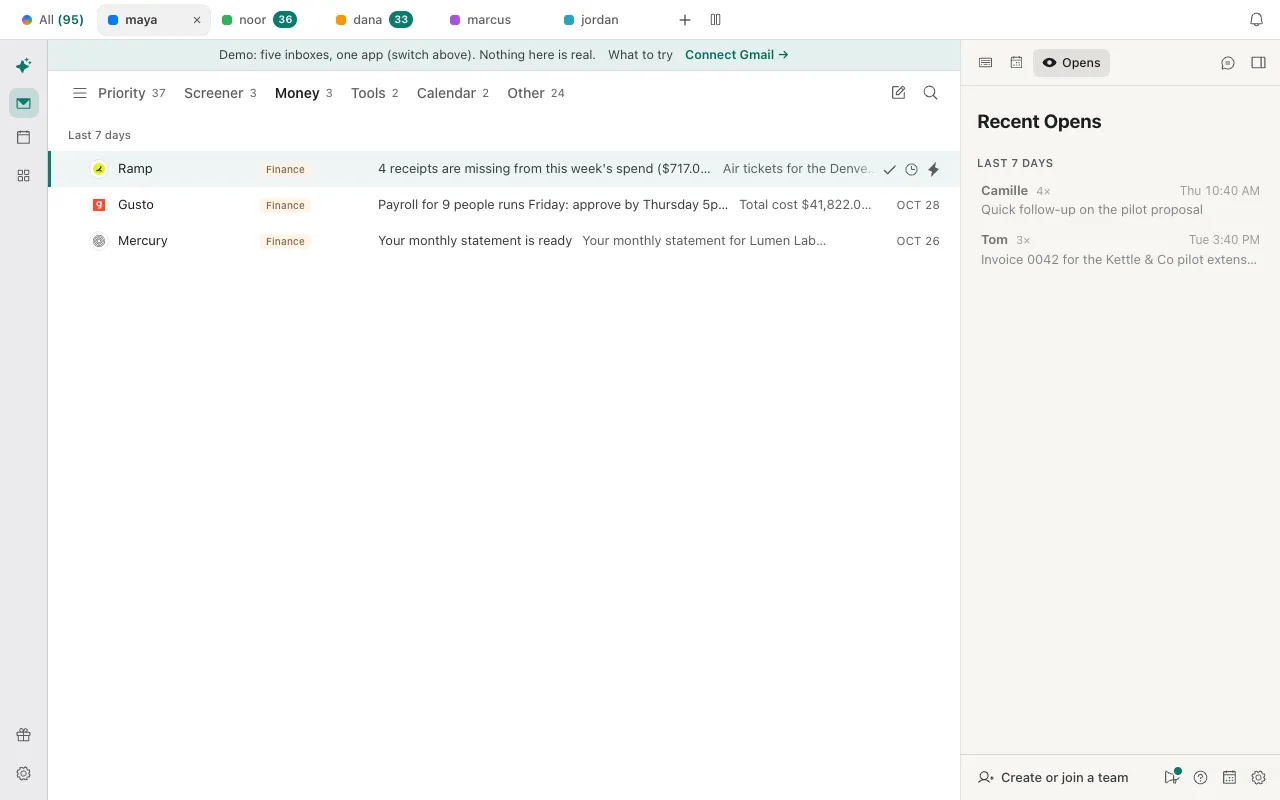
- Look at the tabs. Above the list are Priority, any splits you have, and Other, each with a count. Priority is mail from real people. Other is newsletters, notifications and receipts, which the app detects from the List-Unsubscribe header, bulk headers, no-reply senders and Gmail categories. A new inbox starts with one split, Calendar. If you have switched on the Screener, it is a tab after Priority.
- Move between them. Click a tab, or press Tab and Shift + Tab in the list to go to the next and previous one. G then I goes to the first tab in your order, and G then O goes to Other.
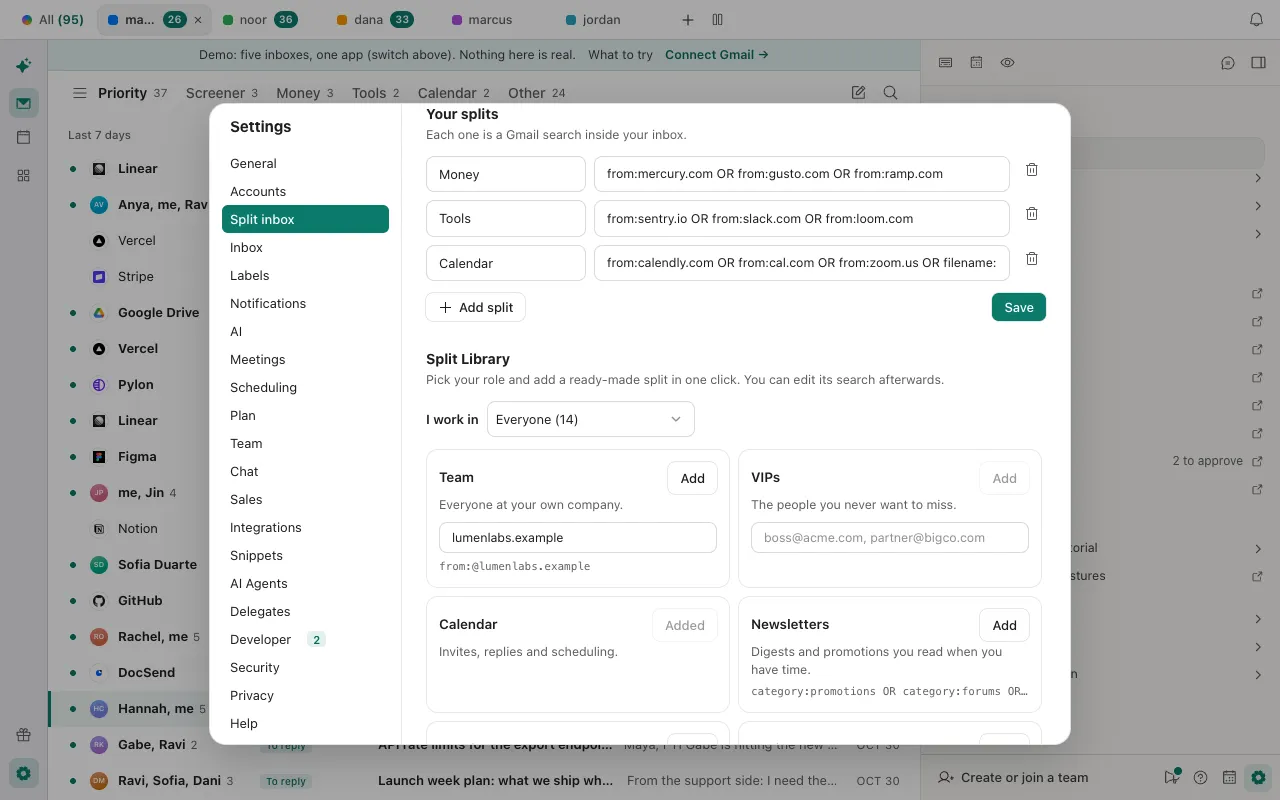
- Add a split of your own. Point at the tab bar and click the small gear (Edit splits), or open Settings, then Split inbox. Under Your splits, click Add split, type a name and a Gmail search such as
from:mercury.com OR from:gusto.com, and click Save. The search can use any Gmail operator and is run against your inbox. A split takes its conversations out of Priority and Other. - Or start from the library. Further down, Split Library asks what you work in (Everyone, Founders & executives, Sales & customers, Engineering, Finance & ops, Investors and Executive assistants are among the 11 roles) and lists ready-made splits for that role. Click Add on one and edit its search afterwards. Team asks for your company's domain, and VIPs for the addresses you never want to miss. From assistant labels makes a split from one of the assistant's labels, such as To reply or FYI.
- Put the tabs in your order. In Settings, then Split inbox, under Order, drag a handle, or focus it and press ↑ or ↓. Hide empty splits takes a split off the bar until mail arrives; the one you are looking at always stays.
- Move one conversation, or a sender. Press ⌘K and choose Move to a split. For a sender or a company, choose Always move its domain to a split, or add it under Rules in Settings, then Split inbox. An exact address beats its domain.
| In Gmail | In Donezo Inbox |
|---|---|
| Search criteria for each section | The split's Gmail search |
| Section name | The split's name, up to 40 characters |
| Maximum page size | No equivalent setting |
| Multiple Inbox position | The order of the tabs, set by dragging; one split is shown at a time |
| No limit on sections stated | Up to 12 splits of your own per inbox, plus Priority and Other |
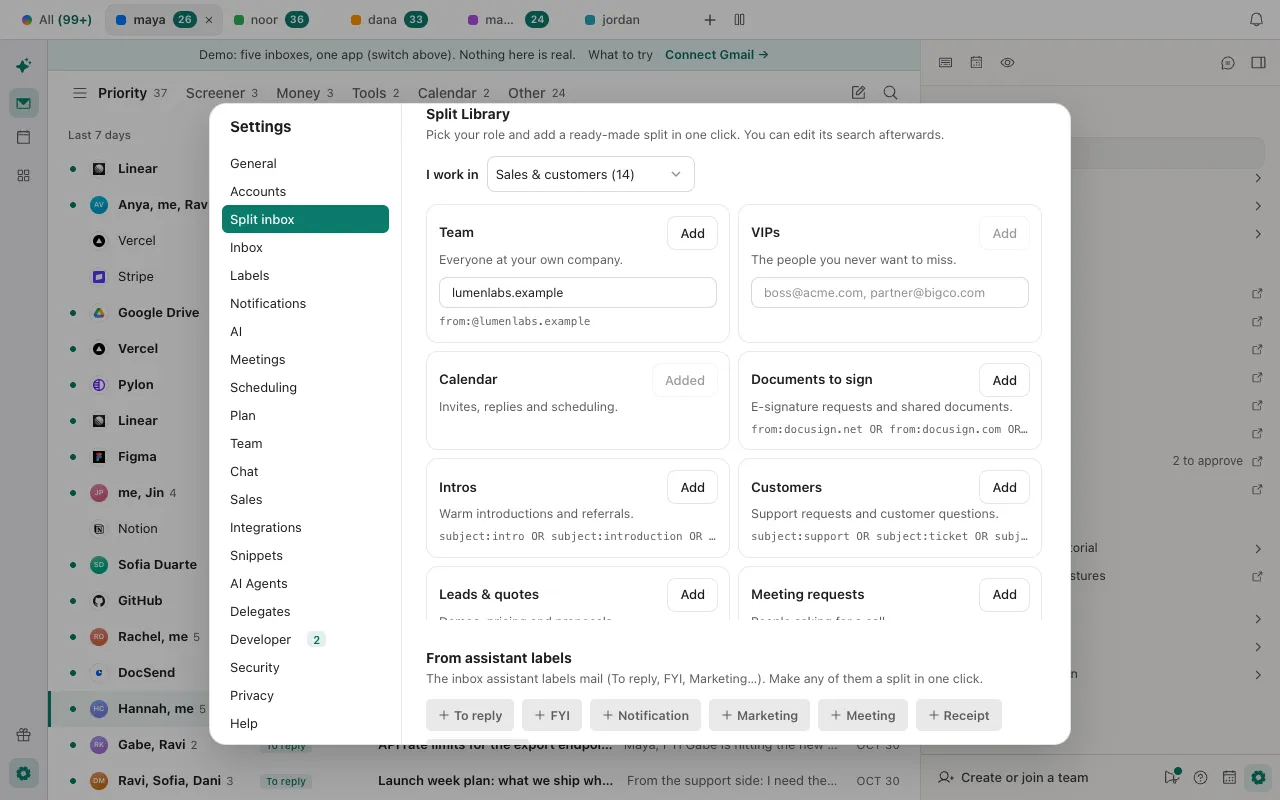
- The library: 74 ready-made splits across 11 roles. A preset can appear under more than one role, so the numbers in the role menu add up to more than 74.
- Which split wins: a conversation you moved by hand comes first, then a rule for its sender, then the first of your splits, in the order they are listed under Your splits, whose search finds it, then Donezo Inbox's own Priority or Other guess. Moving one by hand keeps a Donezo label on it in Gmail, so your other devices show the same move.
- What a search reads: each split reads the first 100 conversations its search finds in the inbox, each time the inbox refreshes. A very broad search can leave older matches in Priority or Other.
- Limits in the app: up to 12 splits of your own per inbox, names up to 40 characters and searches up to 400.
- All inboxes: with two or more inboxes, All inboxes shows the Priority split of each one together. How accounts are added and switched is in how to add another Gmail account.
The demo's inboxes have splits you can click through and edit; nothing is stored. Open the live demo: it runs with sample mail, no sign-in.
Can Claude or Codex read your splits?
Yes, to read them. Through the Donezo Inbox connector, list_splits returns each inbox's splits in tab order with the Gmail search behind each one, and list_threads runs that search so Claude can show what is in a split. There is no connector tool for creating, editing or reordering splits; that stays in Settings.
Read only: how my inboxes are split
Using Donezo, list the splits for each of my inboxes, in tab order, with the Gmail search behind each one. Only list them. Do not change anything.Read only: what is in one split
For the split called Money in my first inbox, search that split's own Gmail search together with in:inbox and list the five newest conversations with sender and subject. Do not change anything.Neither prompt needs approval, because neither sends, schedules, forwards or deletes. With the default setting, Read and write, with approval, those actions wait in your approval queue (Settings, then Developer, then Approvals) and expire after 24 hours; organizing actions run straight away. Reading and searching work on every plan. A split that names someone on your never-send-to-AI list is shown to the agent as “search hidden”.
Tools involved: list_splits, list_threads. The full list, permissions and setup commands are in the connector documentation.
What if a split is empty, missing or in the wrong place?
- You cannot find Multiple inboxes in Gmail's settings. Google says you can only set it up on a computer. On a computer, click Settings at the top right and look next to Inbox type.
- A Gmail section shows mail from the wrong person. A search on an address also returns mail from that person's aliases. Put it in double quotes, as in
"from:john.doe@gmail.com", to match only the original address. - A split is empty although you expected mail. A split looks only at mail in your inbox, and a conversation you moved by hand or a sender rule comes before the search. Paste the split's search into the search box with
in:inboxin front to see what Gmail returns. - Older mail that fits the search is still in Priority or Other. Each split reads the first 100 conversations its search finds on each refresh. Make the search narrower, or move the rest by hand with ⌘K, then Move to.
- A split has gone from the tab bar. Hide empty splits is on, and the split has nothing in it. It comes back when mail arrives, or turn the switch off under Settings, then Split inbox.
- Add is greyed out or says you already have it. A preset can be added once, a name cannot be used twice, and you can have at most 12 splits of your own. Team also needs a company domain such as acme.com, and VIPs at least one address.
- Donezo Inbox does not show Google's own Primary, Social and Promotions tabs. It sorts with Priority, Other and your splits instead. Gmail's own web inbox keeps showing the tabs or sections you chose there.
Questions
What is the difference between Multiple inboxes and Priority Inbox in Gmail?
Google describes multiple inboxes as extra sections that you define with search operators or labels. Priority Inbox splits the inbox into sections and lets you choose which to show: Important and unread, Starred, Everything else, or a label.
Can I use multiple inboxes on my phone?
Google says multiple inboxes can only be set up with a computer. Donezo Inbox's phone settings have a Split Inbox page; this guide did not run it on a phone.
Does a split move mail out of my Gmail inbox?
No. A split is a view inside Donezo Inbox, and the mail stays in your Gmail inbox. Moving one conversation by hand to a split keeps a Donezo label on it in Gmail so your other devices match.
How many splits can I have?
Up to 12 of your own for each inbox, plus Priority and Other. Google's page states no limit on sections.
Does a split cost anything?
No. Split inbox, the Split Library and moving mail between splits are part of the free plan. A split made from an assistant label only fills once the inbox assistant, which needs Pro or a server-side AI key of your own, has labeled mail.