 Donezo Inbox
How to add a signature in Gmail
In Gmail on the web, click Settings at the top right, then See all settings. Under General, scroll to Signature, type your text in the box, add an image or change the style, and click Save Changes at the bottom. A signature can hold up to 10,000 characters, images included. Donezo Inbox does not edit your Gmail signature: it reads the one Gmail holds for the address you send from and adds it below your message, so you change it in Gmail. You can also type a plain-text signature of your own under Settings, then Accounts.
How do you add a signature in Gmail?
- Open Gmail. At the top right, click Settings, then See all settings.
- Under General, scroll to the Signature section and type your text in the box. You can add an image or change the text style.
- If you get an error, resize the image: images count toward the 10,000-character limit.
- If you want more than one signature, create another. You can set one as the default for new emails and one for replies, and choose a different one for each message with Insert signature (the pen icon) at the bottom of the message window.
- At the bottom of the page, click Save Changes.
- One signature per address: if you send from more than one address, choose the address from the drop-down above the signature box, then write that address's signature. If the drop-down is missing, open Accounts and Import in settings and check the address is listed under Send mail as.
- Edit: under General, scroll to Signature, click the signature, make your changes, click Edit if you want to rename it, then Save Changes.
- Remove: under General, scroll to Signature, click the signature, click Delete and confirm with Delete again, then click Save Changes.
- Not on Google's page: it does not say whether a signature goes above or below quoted text in a reply, gives no option for forwarded messages (its defaults are for new emails and for replies), and has no separate steps for adding a link.
These steps follow Google's own documentation, read on November 1, 2026 for Gmail on the web (desktop). They were checked against the documentation, not clicked through in a real account. Google's page does not split its steps by platform, so these are its steps as written for a computer. It links a separate article for signature images that was not read. Menus change now and then; if a label differs, Google's page is the reference.
How does Donezo Inbox handle your signature?
Donezo Inbox has no editor for your Gmail signature, and it never changes it: it only reads the list of addresses you can send from, with the signature Gmail holds for each, and keeps a copy on your device that it asks Gmail to refresh once the copy is six hours old. When you write a message it adds the signature for the address you are sending from. Changing the signature is a job for Gmail, or for the plain-text one you can type under Accounts.
- Set the signature in Gmail, as in the steps above. Donezo Inbox does not need anything else from you: with the Gmail signature setting on, which it is by default, a new message opens with a blank line and then the signature for your default address.
- Press C to write, or R to reply. The signature sits under your text in the editor, as a block you can edit or delete like any other text. In a reply, it moves below the quoted text when the message is sent. If you delete it, Donezo Inbox does not put it back.
- To send from another address, click From at the top of the message, which appears when you have more than one address, or press ⌘⇧F to step to the next one. The signature is swapped for the new address's. If that address has no signature in Gmail, the signature is simply removed.
- Replying to mail that was sent to one of your other addresses goes out from that address, with its signature, unless you turn that off: Settings, then Accounts, and the switch Reply from the address that received it. The same card lists your send-as addresses under Send-as addresses from Gmail.
- To type a signature instead, open Settings, then Accounts, and write it in the Signature override box on that account's card. It saves when you click out of the box, with the message Signature saved. It is plain text, it is used for every address of that account, and it replaces Gmail's. Leave it empty to go back to Gmail's.
- To add no Gmail signature at all, open Settings, then General, and switch off Gmail signature.
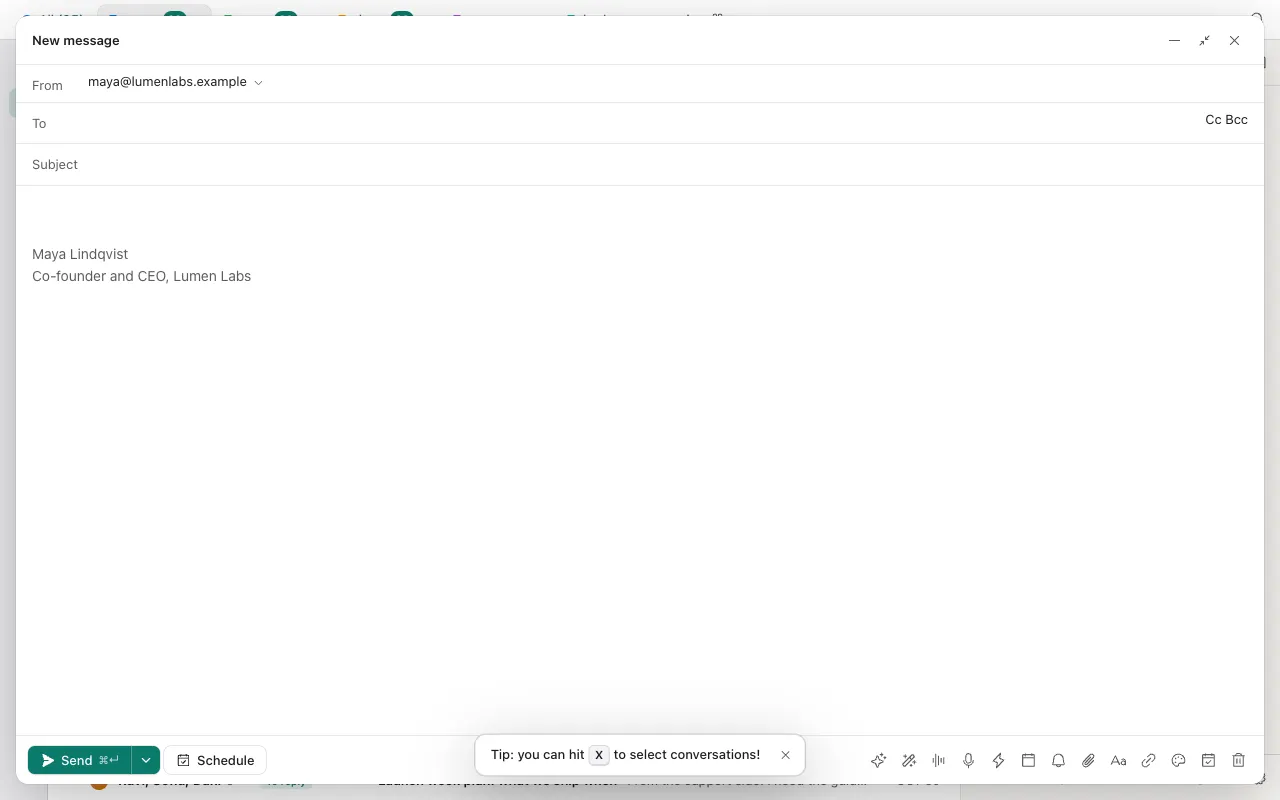
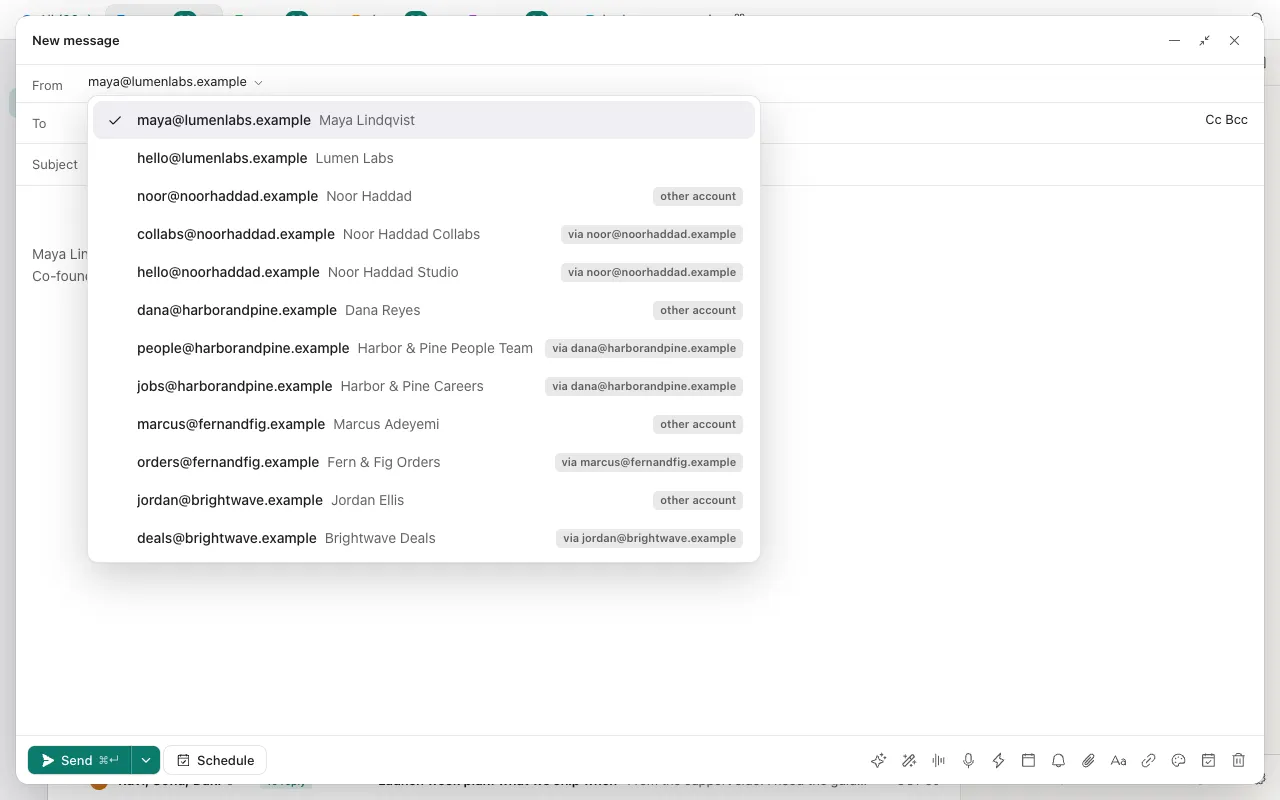
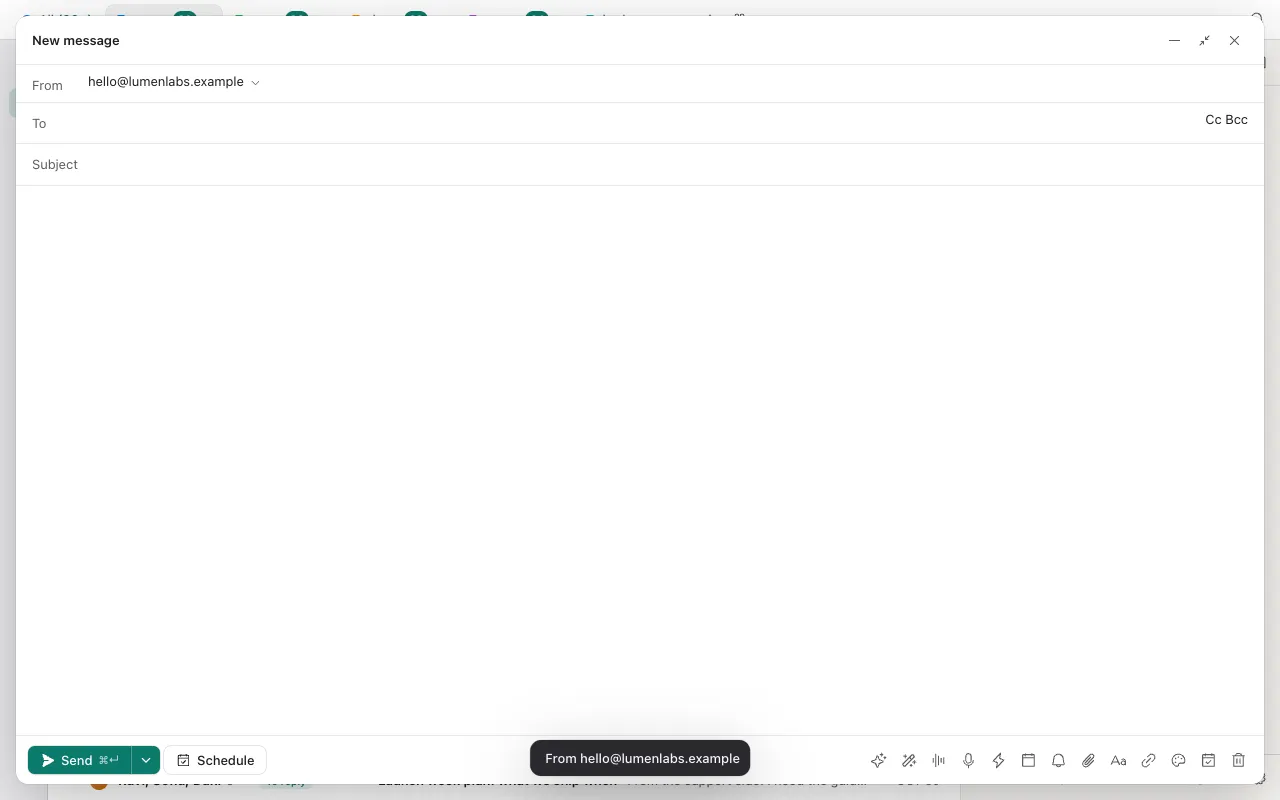
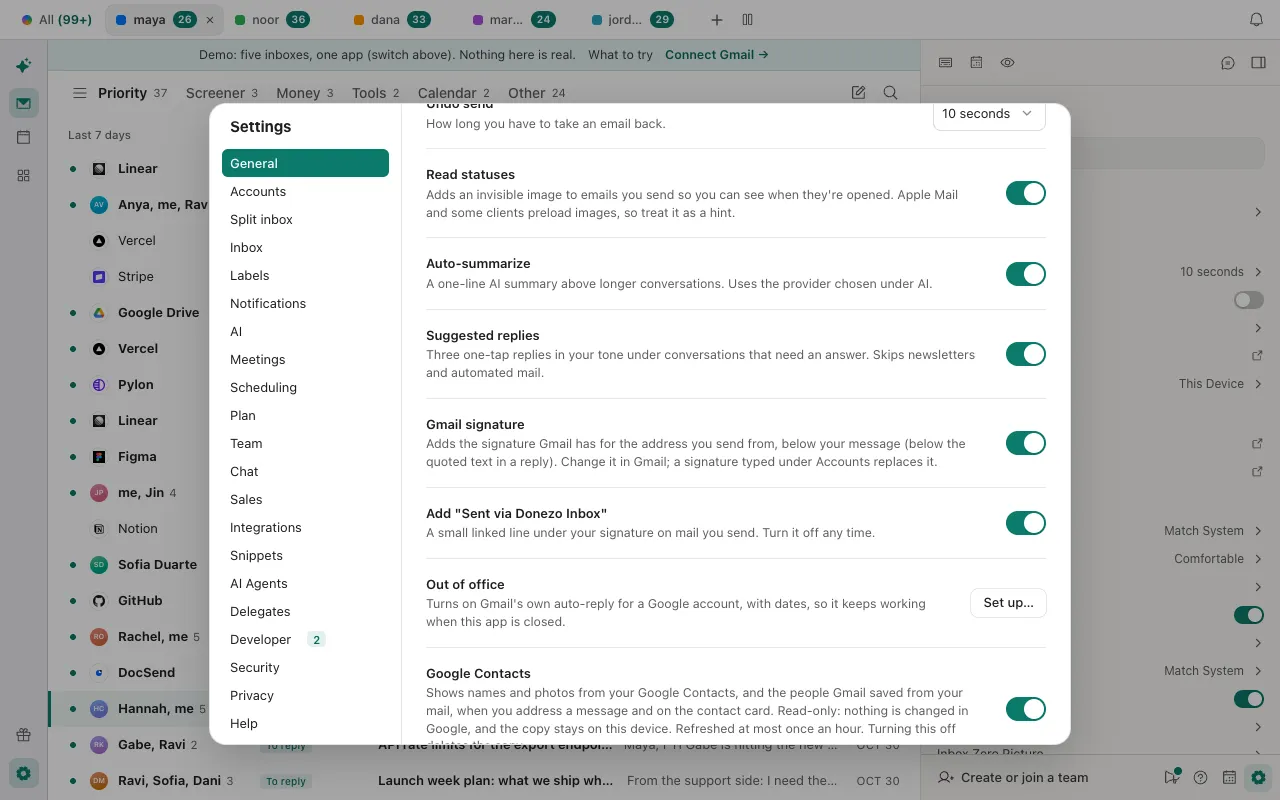
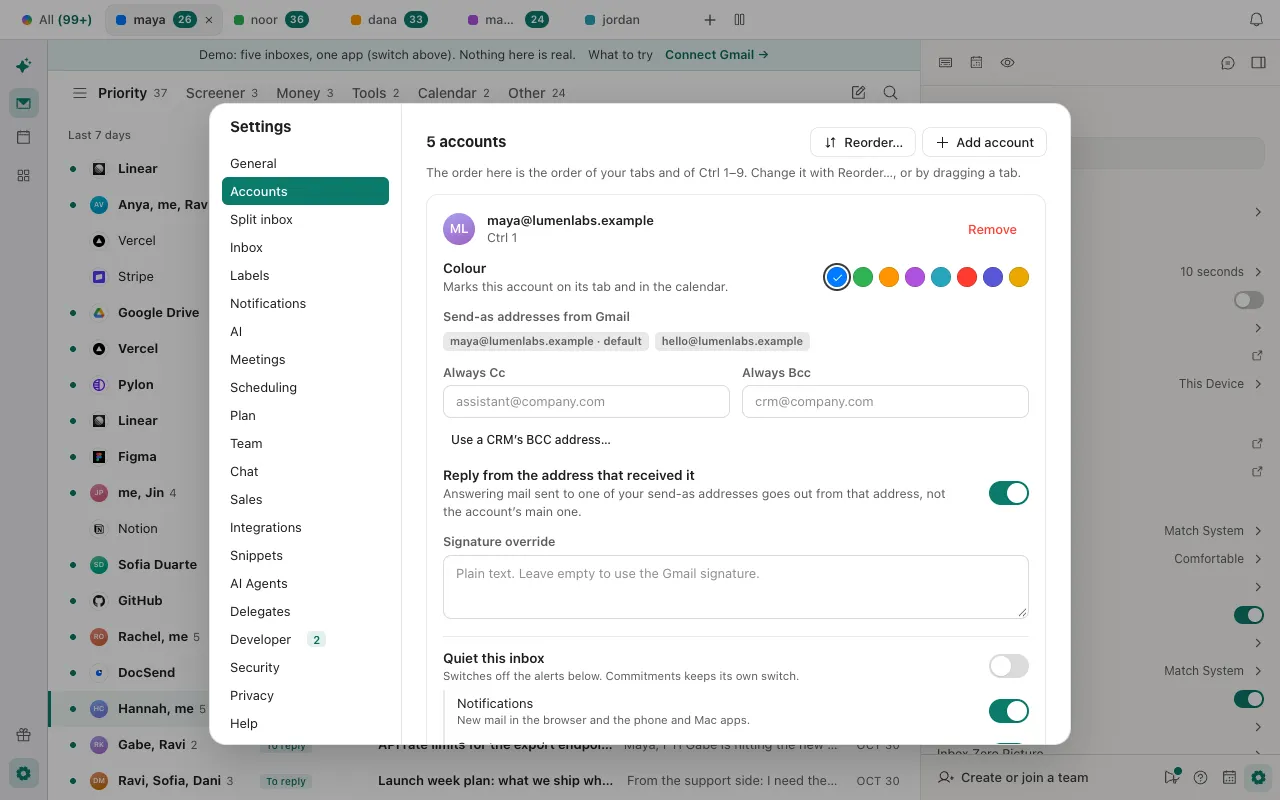
- One signature per address: Donezo Inbox reads a single signature for each address, the one Gmail's settings return. Google describes keeping several signatures and choosing one for new emails and another for replies; Donezo Inbox has no way to pick between them and no setting for a separate reply signature. If you keep several in Gmail, open a new message and check which one appears.
- What it adds: the signature as Gmail stores it, with its style and links. Scripts, embedded frames, forms and style tags are removed first. Images in a signature were not tested for this guide.
- The Sent via line: a small Sent via Donezo Inbox line is added under your signature when a message is sent. It is on for every Free account; Pro can switch it off in Settings, then General. It is not saved into drafts.
- Team signature: an admin of a team can set a signature template under Settings, then Team. It is used only when you have no signature of your own (neither one typed under Accounts nor Gmail's), unless the admin has locked it, in which case it is used for everyone on the team.
- Gmail only for now: the signature comes from Gmail's settings. Outlook and other providers are on the roadmap.
You can open a message and change From in the demo with its sample signature; nothing is sent. Open the live demo: it runs with sample mail, no sign-in.
What if your signature does not show up?
- Gmail will not take the image, or says the signature is too long. Google says a signature can hold up to 10,000 characters and that images count toward the limit. Resize the image, then click Save Changes.
- You cannot choose an address above the signature box in Gmail. Open Accounts and Import in settings and check your other addresses are listed under Send mail as. The drop-down only appears when there is more than one.
- A new message in Donezo Inbox has no signature. Check that Gmail has a signature for the address in the From line, that Gmail signature is on under Settings, then General, and that you did not delete the block in that message. A message opened before the address list had loaded gets its signature a moment later, if you have not typed in it yet.
- You changed the signature in Gmail but Donezo Inbox still adds the old one. It keeps a copy of your send-as list on the device and asks Gmail for a fresh one once the copy is six hours old, so a change can take that long to arrive.
- The signature disappeared when you changed From. Each address has its own, and one without a signature in Gmail gives none. Set one for that address in Gmail, or type one under Settings, then Accounts.
- The signature you typed under Accounts looks plain. It is plain text. It also replaces Gmail's for every address of that account; to get Gmail's formatted one back, empty the box.
- A line reading Sent via Donezo Inbox appears under it. That is the Sent via line, not part of your signature. Pro can switch it off in Settings, then General.
Questions
Can I use a different signature for replies than for new emails?
In Gmail, yes: Google's page says you can create several signatures and set a default for new emails and another for replies. Donezo Inbox reads one signature per address and has no separate reply setting, so it uses the same one in both.
How long can a Gmail signature be?
Up to 10,000 characters, and Google says images count toward that limit.
Does Donezo Inbox change my signature in Gmail?
No. It only reads the list of your addresses with their signatures. A signature typed under Settings, then Accounts, is stored in Donezo Inbox and is not sent to Gmail.
Does a message that Claude or Codex drafts carry my signature?
Yes. The Donezo Inbox connector builds drafts and sent mail with the signature for the sending address, or the one typed under Accounts, using the same rule. This was read in the code, not tested against a live account.
Where does the signature go in a reply?
Under your text while you write, and below the quoted text of the earlier message once it is sent. In a new message or a forward it stays under your text.