 Donezo Inbox
How to get to inbox zero
Inbox zero is a way of handling mail, not a number. For each email you decide once: delete it, answer it, put it off until a date, or take it out of the inbox. Clear the backlog in one pass first, then make the same decision every time you open your mail. In Gmail the moves are Delete, Reply, Snooze and Archive. In Donezo Inbox they are #, R, H and E, Get me to zero clears the backlog, and the app counts the days you reach an empty inbox.
How do you get to inbox zero in Gmail?
- Archive what you want to keep. On your computer, go to Gmail, check the box next to a message and click Archive at the top, or, with keyboard shortcuts turned on, press E after checking the box. Archived mail leaves the inbox. It is under More, then All Mail, and
in:archivefinds it. If someone replies to an archived message, it returns to your inbox. - Delete what you will never need. Check the box next to each message and click Delete at the top. Deleted mail can be recovered from Trash for up to 30 days.
- Clear a backlog in one go. Select a category such as Inbox or Promotions, check the Select box at the top left, and click the link in the notification that selects all conversations in it. Google describes this on its Delete page, so the next click is Delete. To narrow it first, enter a search such as
older_than:1y. - Put off what is not for today. Point to the email, click the Snooze icon on the right and choose a later day and time. It leaves your inbox and comes back to the top at that time. Find snoozed mail under Mail, then Snoozed, or search
in:snoozed. - Answer what needs an answer. Open the message, click Reply below it, enter your message and click Send.
- Mark what is waiting on you. Open a message, click More, then Add Star. Starred in the left sidebar, or
is:starred, lists them. - Let Gmail remind you of replies you owe. Click Settings, then See all settings, open the General tab, choose an option next to Nudges and click Save Changes. Conversation view has to be on.
- The method: MIT Sloan Management Review describes Merlin Mann's Inbox Zero as five choices for each email: delete, delegate, respond, defer or do. The steps above cover four of them; for delegating, forward the message.
- Does it work? The same article cites no studies or surveys, only anecdotes and Mann's own writing. Treat it as a habit some people find calming, not a proven way to save time.
- Not on Google's pages: how to archive a whole selection in one go (the Archive page describes one message at a time, and only the Delete page describes the select-all link), and anything about Inbox Zero itself. Gmail has no counter or streak for it.
These steps follow Google's own documentation, read on November 1, 2026 for Gmail on the web (desktop). They were checked against the documentation, not clicked through in a real account. Each step follows its own Google page, all read on the same day: Archive Gmail messages (6576), Delete messages (support.google.com/mail/answer/7401), Snooze emails until later (7622010), Star emails in Gmail (5904) and Reply to messages (6585). None of them mentions Inbox Zero; the method comes from MIT Sloan Management Review's summary of it. Menus change now and then; if a label differs, Google's page is the reference.
How do you get to inbox zero in Donezo Inbox?
Donezo Inbox is built around the same decision, with one key for each choice. Be clear about which part is the app and which is you: the app moves mail out of the inbox, shows what is left and counts the days you finish; it does not decide what each email deserves.
- Work from the top, one key per email. In the inbox, E marks a conversation done (archive), H snoozes it until a time, R replies and # moves it to Trash. Z undoes the last action, and a message at the bottom says how many you just cleared, with an Undo button. Done mail is not deleted: it stays in Done (G, then E) and in search.
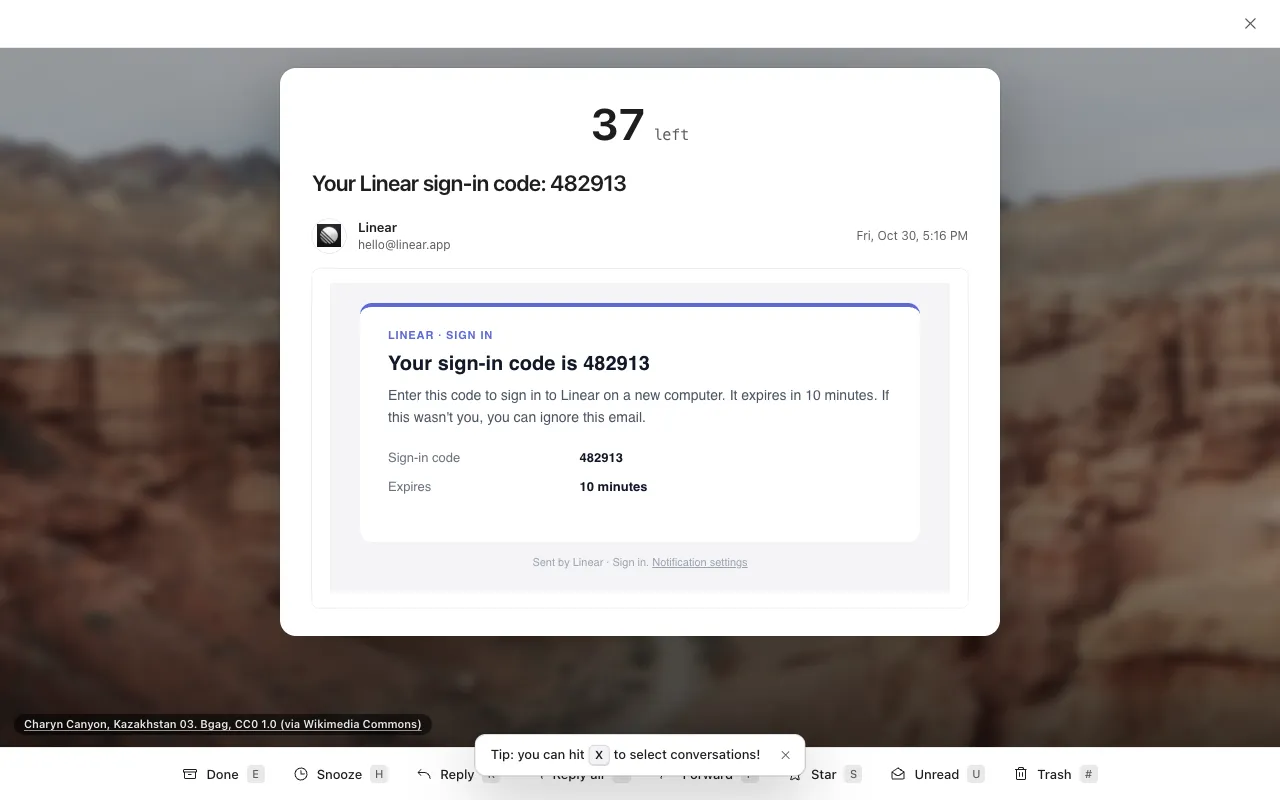
- Or one email at a time. Press ⇧Z for Zen mode. It shows a count of how many are left in the list you were in, one conversation under it, and a bar with Done, Snooze, Reply, Reply all, Forward, Star, Unread and Trash, each with the same key. Press Esc to leave.
- Reply and clear in one move. ⌘⇧Enter sends and marks the conversation done. To do that for every reply, switch on Archive When I Reply under Settings, then Sending.
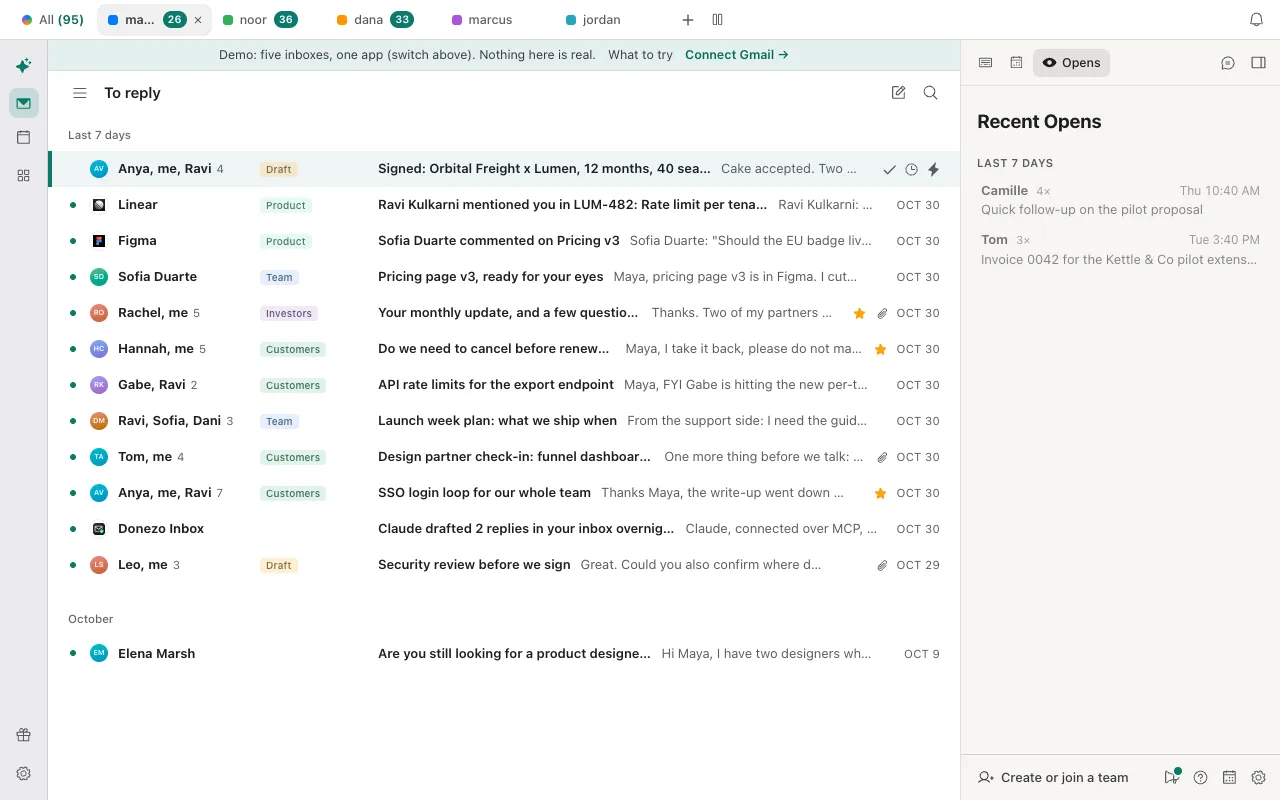
- See what you owe and what you are waiting for. To reply (G, then Z) lists conversations the inbox assistant labelled as needing your answer. Waiting on (G, then W) lists mail you sent that nobody has answered for two days. See how to follow up on an email.
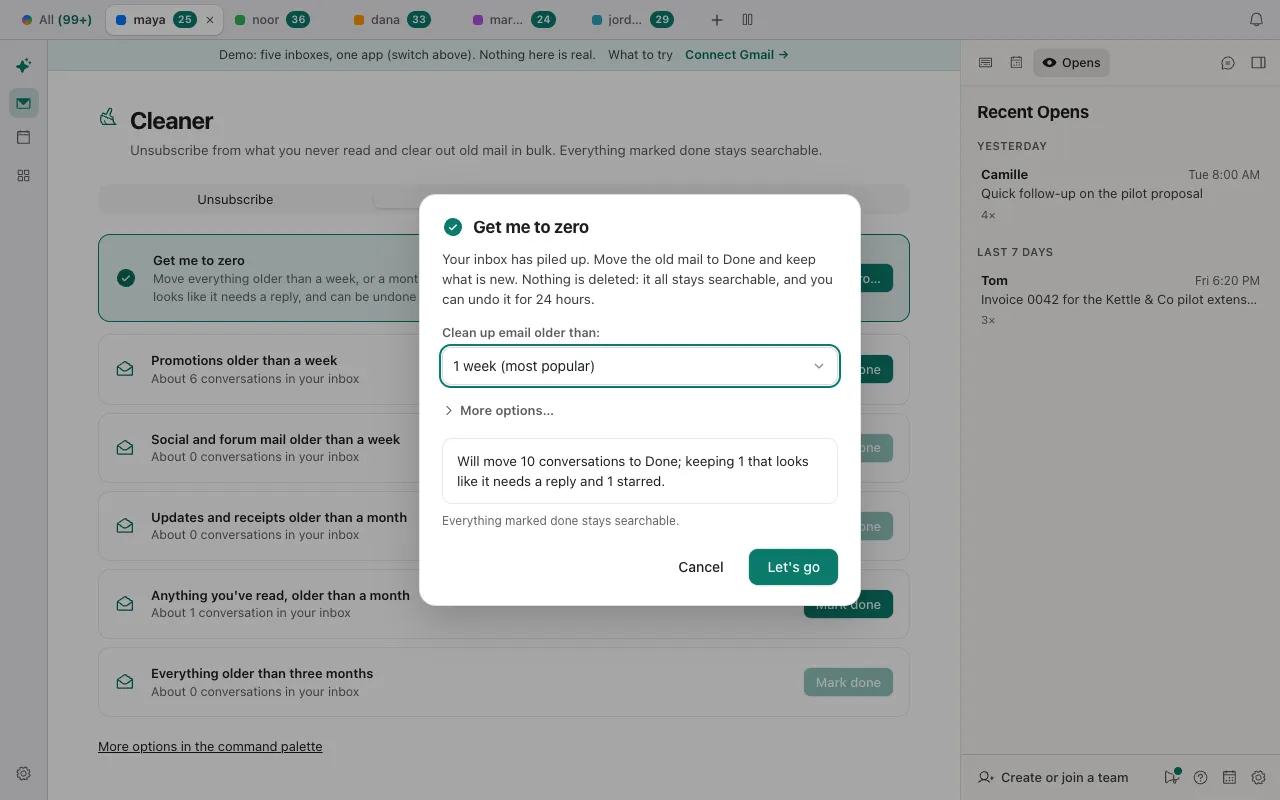
- Clear the backlog once. Press ⌘K and choose Get me to zero, pick an age from 1 week to 6 months, and read the preview, which says how many conversations it would move before it moves any. It keeps starred conversations, ones that look like they need a reply and ones with a draft of yours. Click Let's go; Undo works for 24 hours. The details are in how to clean up your Gmail inbox.
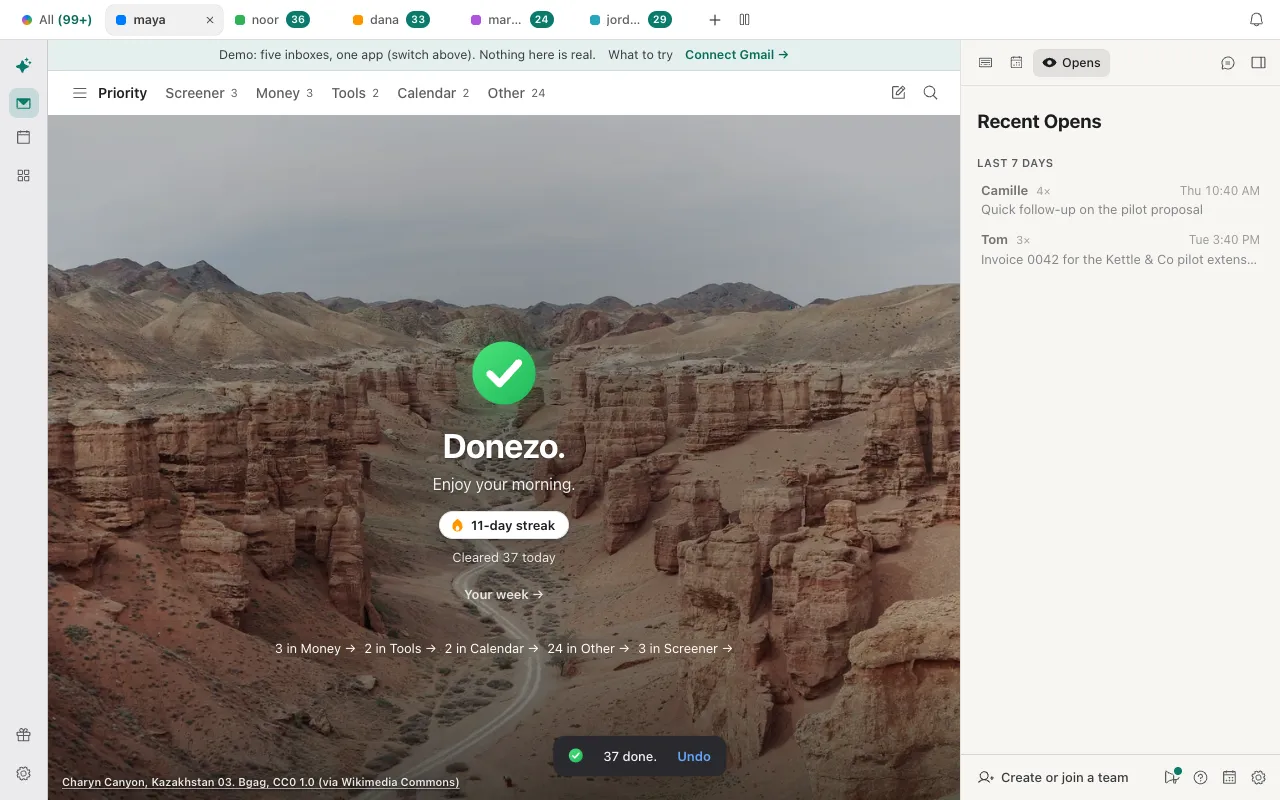
- Reach zero. When the list is empty, an All-done screen shows what is left in your other splits, a streak and a link to your week. The first zero each day also plays a little confetti.
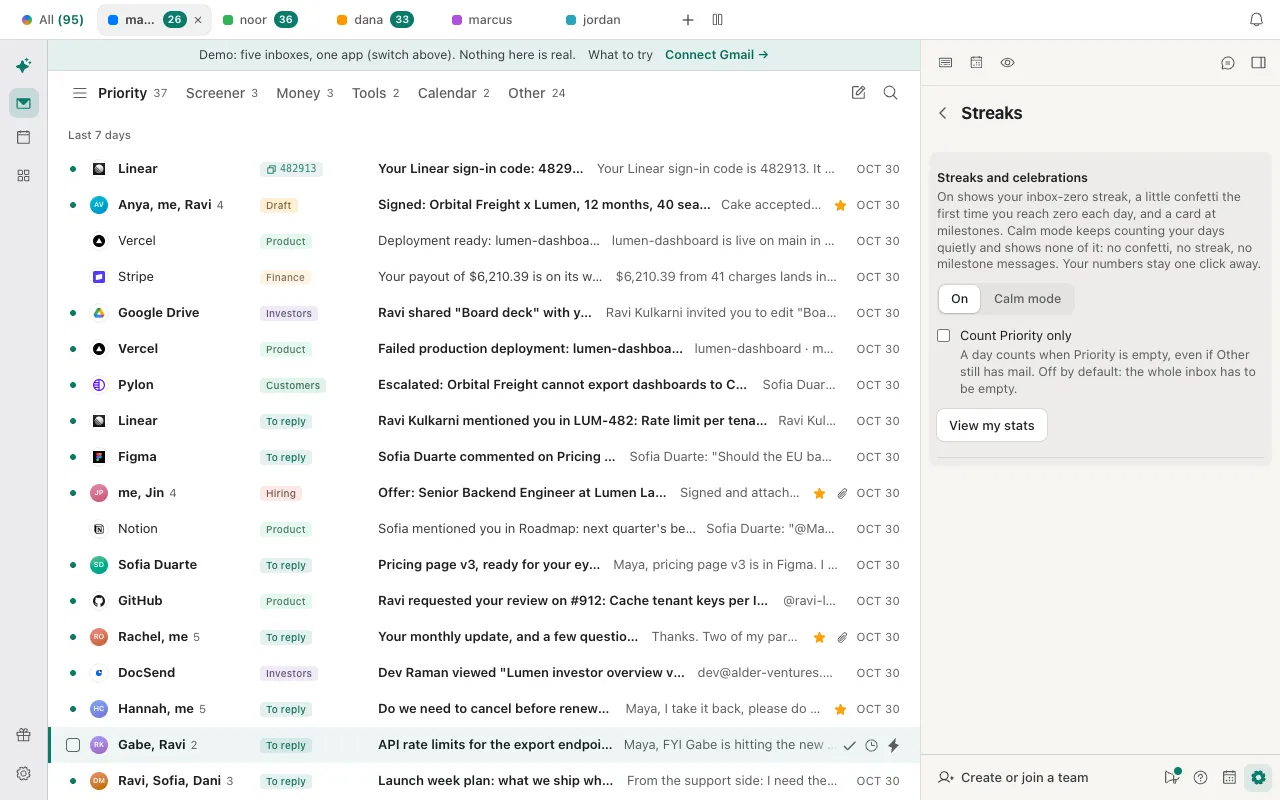
- Keep the streak, or switch it off. Under Settings, then Streaks (General in the full Settings window), choose On or Calm mode, which keeps counting quietly and shows nothing. Count Priority only counts a day when Priority is empty even if Other still has mail, and View my stats shows your numbers.
| Choice | Gmail | Donezo Inbox |
|---|---|---|
| Delete | Check the box, then Delete | # moves it to Trash |
| Delegate | Forward the message (not covered in this guide) | F forwards the open conversation |
| Respond | Reply, then Send | R replies, ⌘⇧Enter sends and marks done |
| Defer | Snooze icon | H snoozes; ⌘⇧U in a draft sets a follow-up if nobody replies |
| Do | Add Star until you have done it, then Archive | S stars it; E marks it done |
- What counts as a zero day: the inbox is empty after your own triage (done, trash, spam or snooze) and stays empty for about a second and a half, and with several accounts every one of them is empty. A sync that returns a short list, or mail archived on another device, never starts a zero. Undo inside the message's window takes the count back.
- The streak: a chain of consecutive zero days. One missed day is forgiven, and the app calls it a rest day, but only once in any seven days. Milestone cards appear at 3, 7, 14, 30, 60, 100, 200 and 365 days.
- What the stats keep: counts only. Conversation ids are used for a few seconds to tell one from another and are never stored.
- To reply needs the assistant. The label comes from the inbox assistant, which is off until you switch it on, runs on Donezo's servers and needs Pro or a server-side AI key of your own. Without it the view has nothing in it. The Done, snooze, Zen and Get me to zero moves, and the streak, do not need it.
- It is a habit, not a feature. The app makes each move one key. It cannot stop new mail arriving, so unsubscribing and rules matter as much; see how to unsubscribe from emails in Gmail in bulk.
You can clear the sample inbox without signing in; nothing is stored, and the streak shown is sample data. Open the live demo: it runs with sample mail, no sign-in.
Can Claude or Codex get you to inbox zero?
Partly. Through the Donezo Inbox connector an agent can look at the inbox, mark old bulk mail done in batches and snooze a thread. inbox_overview shows mail from real people first with a count of the rest, reply_zero lists what waits on you and what you are waiting on, update_threads marks conversations done, and snooze_thread takes one out of the inbox until a time. Start with the overview, so you see the picture before anything moves.
Safe first step: a look, nothing changed
Using Donezo, give me an overview of my inbox: the mail from real people first, what is waiting on a reply from me, and what I am waiting on from others. Do not change anything, and tell me how many conversations are in each inbox.Then the bulk mail, marked done and not deleted
Mark done (archive) the conversations in my inbox older than one week that are newsletters or notifications. Work in batches of at most 50 per account, tell me how many you changed per account, and stop after 200 in total. Never touch mail from people. Do not trash anything.One conversation put off, with the time written out
Snooze my thread with Hannah about the renewal until Monday at 9:00 AM Pacific time. Before you do, tell me the exact date, time and UTC offset you will use, and which account it is in.Marking done and snoozing are organizing actions, so with the default setting, Read and write, with approval, they run straight away, and they are easy to undo: the mail is in Done and search, and a snooze can be changed. Each update_threads call takes up to 100 conversations from one account. Trashing counts as a delete and waits in Settings, then Developer, then Approvals, for your OK; requests expire after 24 hours. snooze_thread takes an ISO 8601 time, so ask for the UTC offset to be included. An agent's changes do not start a streak day: that is counted from your own actions in the app. A free account has a limited number of agent actions that change mail; reading, searching and drafting are not counted.
Tools involved: inbox_overview, reply_zero, update_threads, snooze_thread. The full list, permissions and setup commands are in the connector documentation.
What if the inbox will not stay empty?
- The All-done screen showed but the streak did not move. By default the whole inbox has to be empty, in every linked account, not just Priority. Turn on Count Priority only under Settings, then Streaks, if you want Priority alone to count. In Calm mode nothing is shown at all.
- There was no confetti. It plays for the first zero of each day, and not in Calm mode or when your device asks for reduced motion.
- Mail came back after I marked it done. A new message in a done conversation brings it back, and so does a snooze or a follow-up that has come due. Gmail does the same for archived mail when someone replies.
- To reply is empty. The inbox assistant is off, or nothing needs an answer. The view lists only mail the assistant labelled To reply.
- I cleared everything but the day did not count. Only your own done, trash, spam or snooze count, seen as an action you could undo, and the empty inbox has to hold for about a second and a half. A sync that returns an empty list, or mail cleared on another device, does not start a zero.
- My streak broke after a day off. One missed day is forgiven, but only once in any seven days, so two misses close together end the chain.
- Get me to zero says Nothing to move. Nothing in the inbox is old enough, or what is old enough is being kept: starred conversations and ones that look like they need a reply stay by default. Choose a shorter age.
Questions
What are the 5 D's of email management?
Delete, delegate, respond, defer and do, as MIT Sloan Management Review describes Merlin Mann's method. Each email gets one of the five. The table above shows the move for each in Gmail and in Donezo Inbox.
Does inbox zero mean the inbox is always empty?
It means you decide on each email instead of leaving it there. An empty inbox at the end of a session is the result, not a rule that holds all day. Donezo Inbox counts a day when you reach zero at some point.
Does inbox zero save time?
MIT Sloan Management Review's piece on it cites anecdotes, not studies, so there is no evidence here either way. It can make a day's mail feel finished, and it can hide work you have only moved out of sight, which is why starring and follow-ups matter.
Is marking mail done the same as deleting it?
No. Done takes the conversation out of the inbox and it stays in your account, in Done and in search. Only Trash deletes, and Gmail empties it after 30 days.
How do I keep it at zero once I get there?
Stop what keeps arriving, and handle the rest as it comes. Unsubscribe in bulk, then use E, H and R when you open the inbox, with Archive When I Reply on.
Can Claude clear my inbox for me?
It can look and mark old bulk mail done in batches. Deleting waits for your approval, and it will not start your streak. The prompts are in the section above.